
Hot Categories
Product Q&A
Q: How to configure separate Wifi Ssids for 2.4 GHz and 5GHz bands on ASUS Router?
A: Follow the steps below:
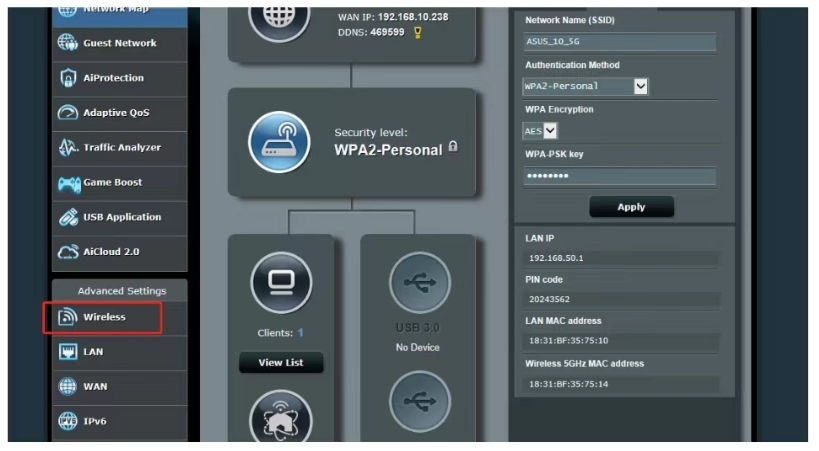
1. In the Advanced Settings area, click Wireless.
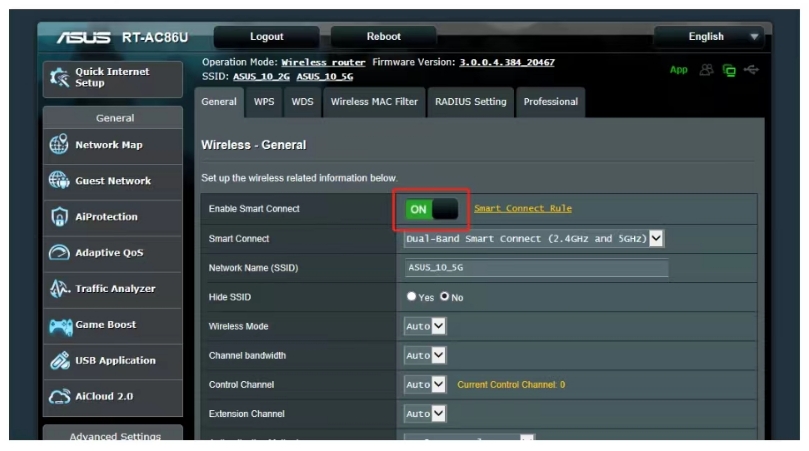
2. On the General tab page, turn off Enable Smart Connect.
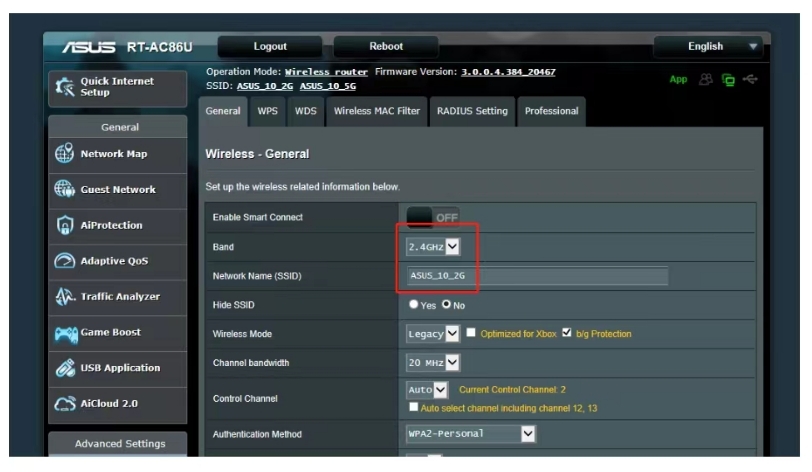
3. Select 2.4GHz in Band dropdown, set Network Name(SSID) as xxx-2.4G and save.
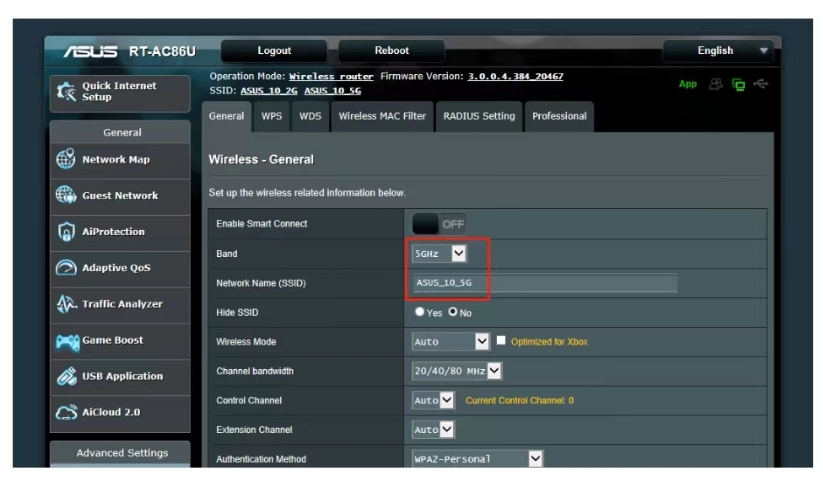
4. Select 5GHZ in Band dropdown, set Network Name(SSID) as xxx-5G and save.
Note: Reconnect your devices after modification, password stays unchanged if you don't edit it.
1. In the Advanced Settings area, click Wireless.
2. On the General tab page, turn off Enable Smart Connect.
3. Select 2.4GHz in Band dropdown, set Network Name(SSID) as xxx-2.4G and save.
4. Select 5GHZ in Band dropdown, set Network Name(SSID) as xxx-5G and save.
Note: Reconnect your devices after modification, password stays unchanged if you don't edit it.
Q: How to configure separate Wifi Ssids for 2.4 GHz and 5GHz bands on D-LINK Router?
A: Follow the steps below:
1. On the D-Link home page, click Settings tab and select Wireless.
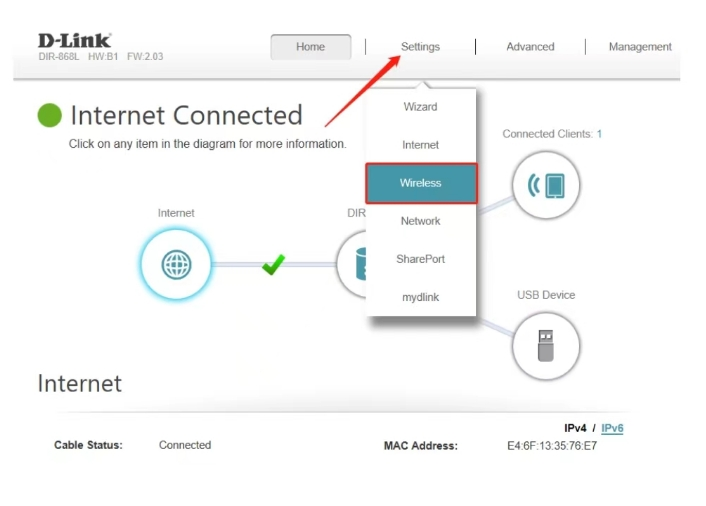
2. Set Wi-Fi Name(SSID) to xxx-2.4G for 2.4GHz area, set xxx-5G for 5GHz area.
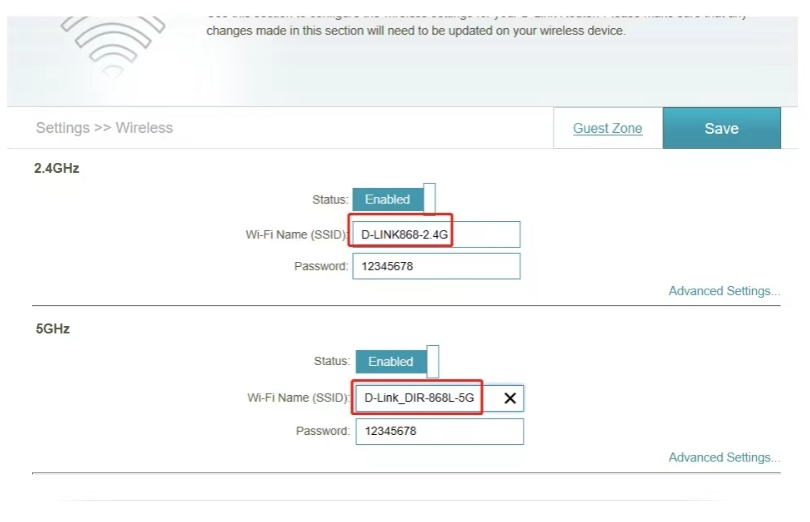
3. Click Save to finish settings.
Note: Reconnect your devices after modification, password stays unchanged if you don't edit it.
1. On the D-Link home page, click Settings tab and select Wireless.
2. Set Wi-Fi Name(SSID) to xxx-2.4G for 2.4GHz area, set xxx-5G for 5GHz area.
3. Click Save to finish settings.
Note: Reconnect your devices after modification, password stays unchanged if you don't edit it.
Q: How to configure separate Wi-Fi SSIDs for 2.4 GHz and 5GHz bands on NETGEAR Router?
A: Follow the steps below:
1. On the BASIC tab page, click Wireless module.
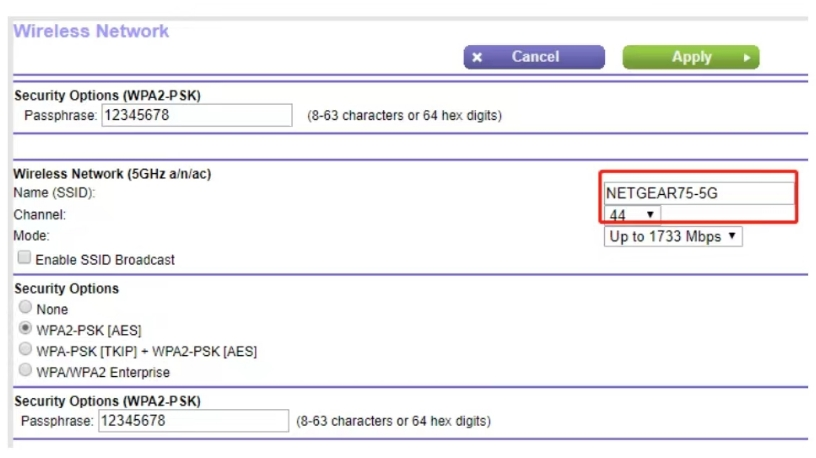
2. Set Name (SSID) to xxx-2.4G under Wireless Network (2.4GHz b/g/n) and save.
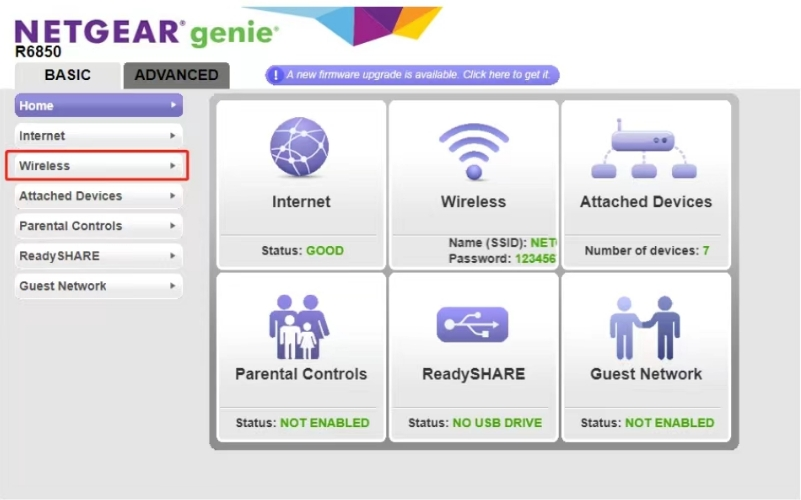
3. Set Name(SSID) to xxx-5G under Wireless Network(5GHz a/n/ac) and save.
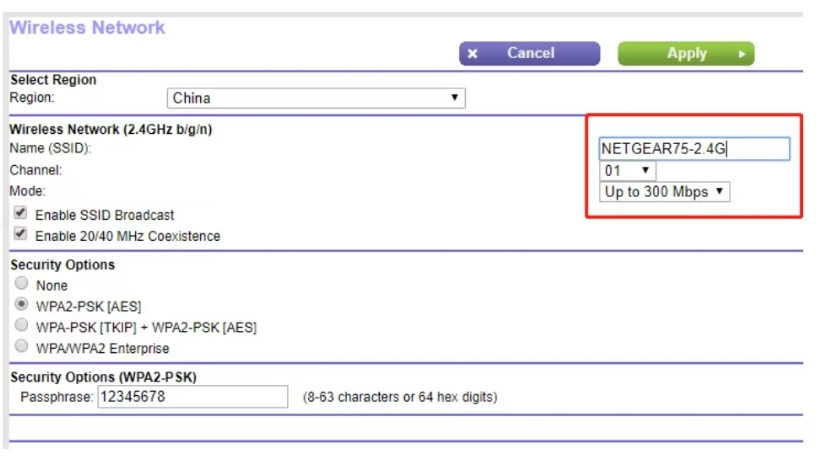
Note: Reconnect your devices after modification, password stays unchanged if you don't edit it.
1. On the BASIC tab page, click Wireless module.
2. Set Name (SSID) to xxx-2.4G under Wireless Network (2.4GHz b/g/n) and save.
3. Set Name(SSID) to xxx-5G under Wireless Network(5GHz a/n/ac) and save.
Note: Reconnect your devices after modification, password stays unchanged if you don't edit it.
Q: How to configure separate Wifi Ssids for 2.4 GHz and 5GHz bands on TP-LINK Router?
A: TP-Link uses unified SSID by default, follow steps to split bands:
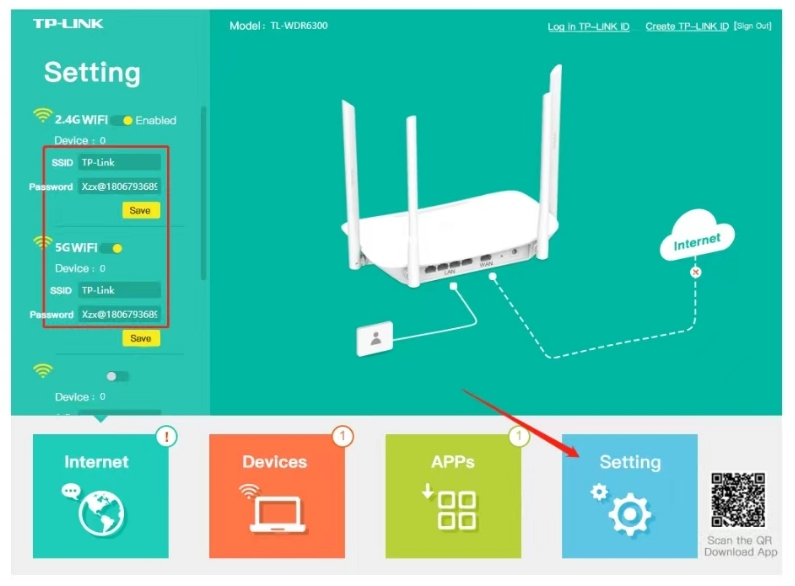
1. Click Setting button at the bottom right of the page.
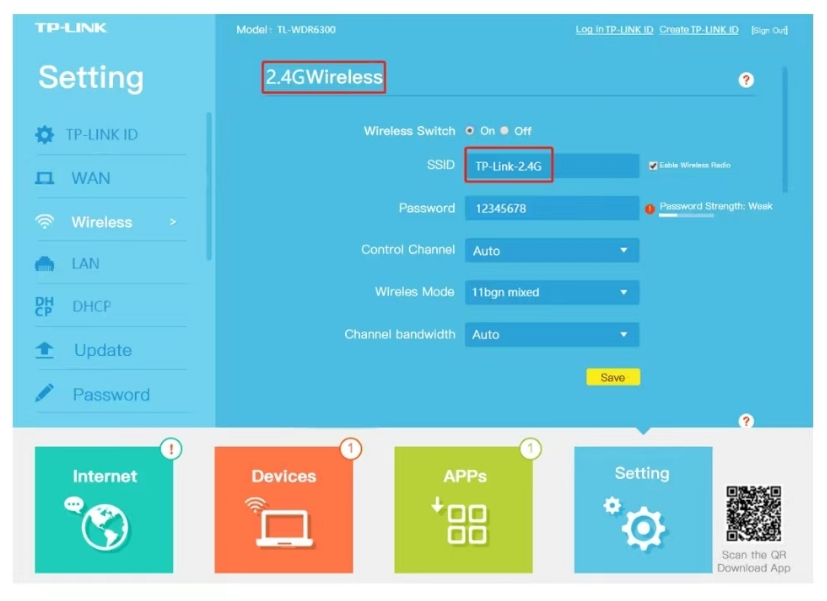
2. Click Wireless from left menu bar.
3. Go to 2.4G Wireless page, set SSID as xxx-2.4G and save.
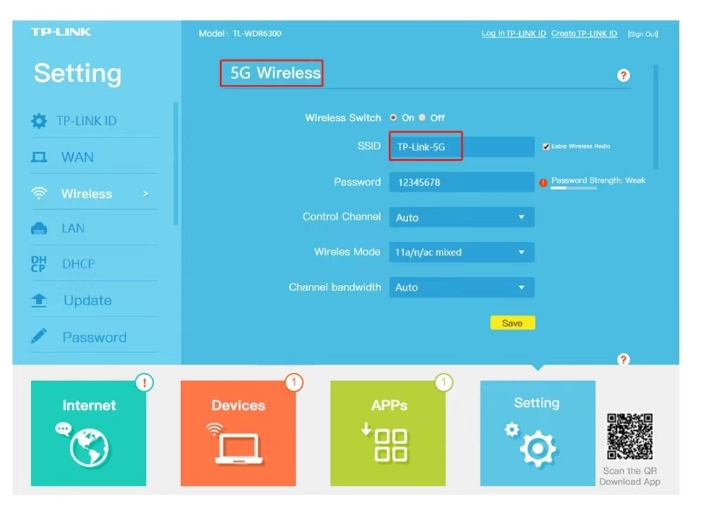
4. Switch to 5G Wireless page, set SSID as xxx-5G and save.
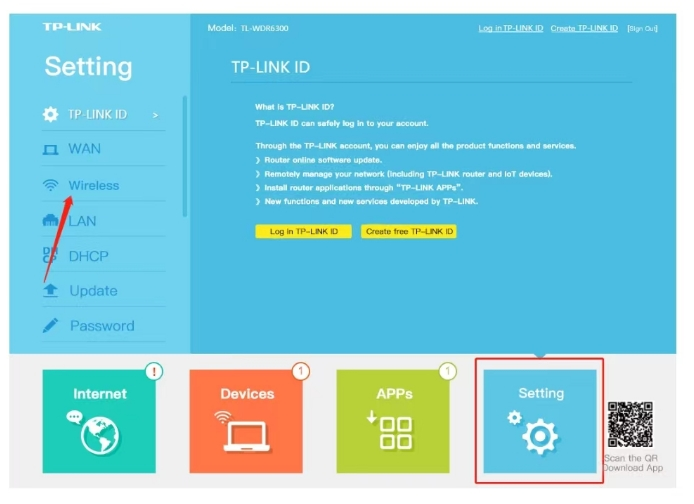
Note: Reconnect your devices after modification, password stays unchanged if you don't edit it.
1. Click Setting button at the bottom right of the page.
2. Click Wireless from left menu bar.
3. Go to 2.4G Wireless page, set SSID as xxx-2.4G and save.
4. Switch to 5G Wireless page, set SSID as xxx-5G and save.
Note: Reconnect your devices after modification, password stays unchanged if you don't edit it.
Q: How to delete video files from SD card?
A: Follow the steps below:
1. Open the full screen in the preview.
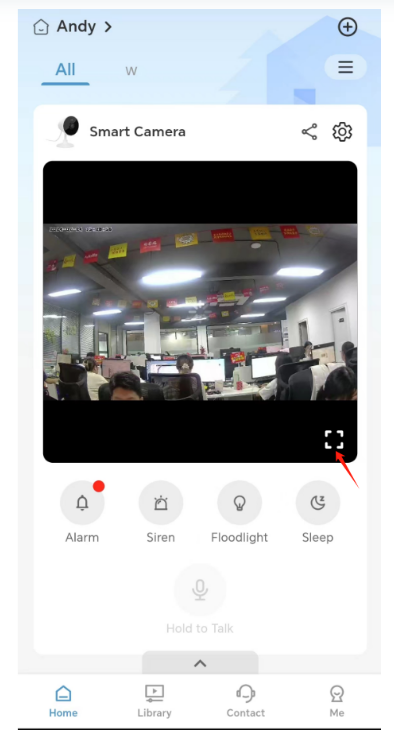
2. Click on the function button.
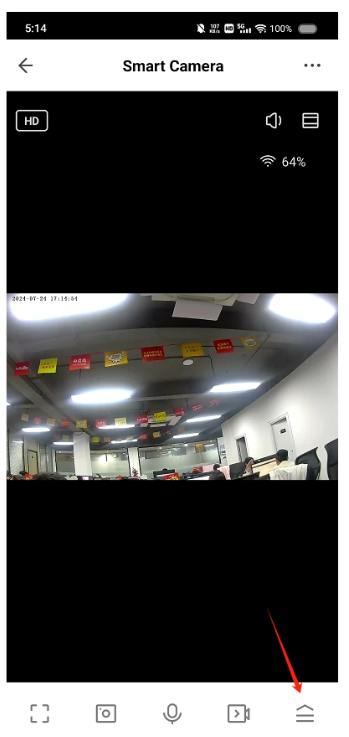
3. Select the playback button.
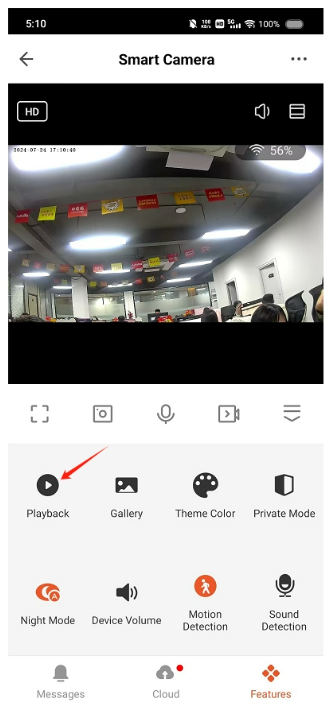
4. Click the delete button, then confirm deletion.
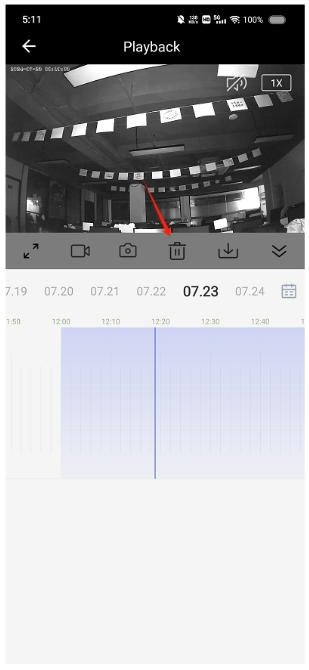
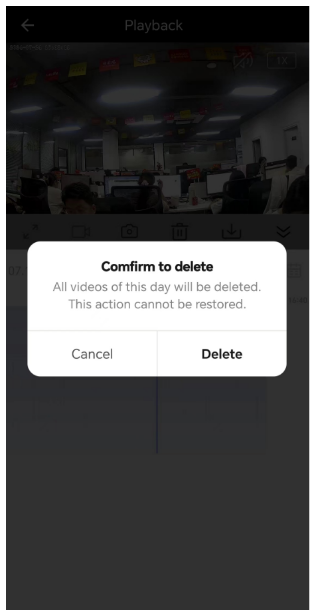
Note: Deleting videos from a TF card can only delete a whole day's worth of videos, and this operation cannot be restored.
1. Open the full screen in the preview.
2. Click on the function button.
3. Select the playback button.
4. Click the delete button, then confirm deletion.
Note: Deleting videos from a TF card can only delete a whole day's worth of videos, and this operation cannot be restored.
Q: How can I extend the battery life of battery camera?
A: You can extend camera battery life with the following settings:
1. Install the camera in places with small flow of people
2. Set the PIR trigger setting to low
3. Set the recording time to 10 seconds
4. Set the trigger interval time to 60 seconds
1. Install the camera in places with small flow of people
2. Set the PIR trigger setting to low
3. Set the recording time to 10 seconds
4. Set the trigger interval time to 60 seconds
Q: How long does your battery camera can last?
A: The standby working days depend on daily trigger times, refer to the parameter table below:
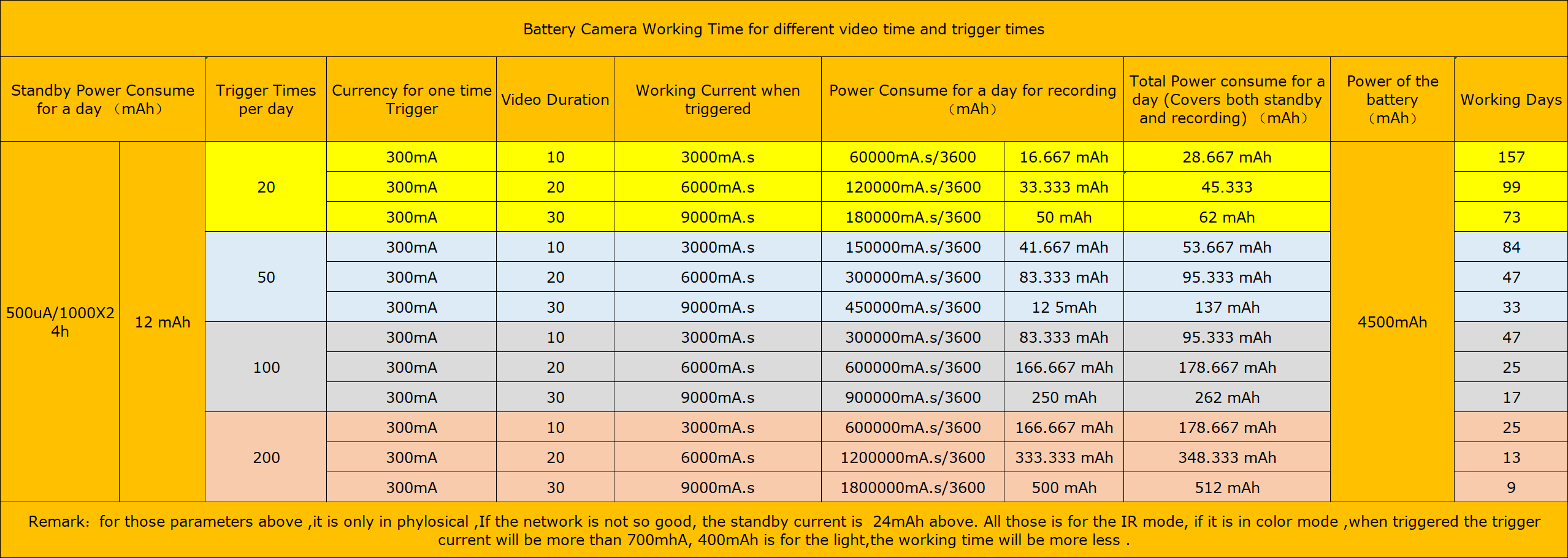
Examples:
• Triggered 50 times a day for 10s each time: 84 days
• Triggered 100 times a day for 10s each time: 47 days
Remark: The parameters are theoretical data. Standby current is 24mAh without network; IR mode will consume more power when triggered.
Examples:
• Triggered 50 times a day for 10s each time: 84 days
• Triggered 100 times a day for 10s each time: 47 days
Remark: The parameters are theoretical data. Standby current is 24mAh without network; IR mode will consume more power when triggered.
Q: How to access the Cloud Storage on APP?
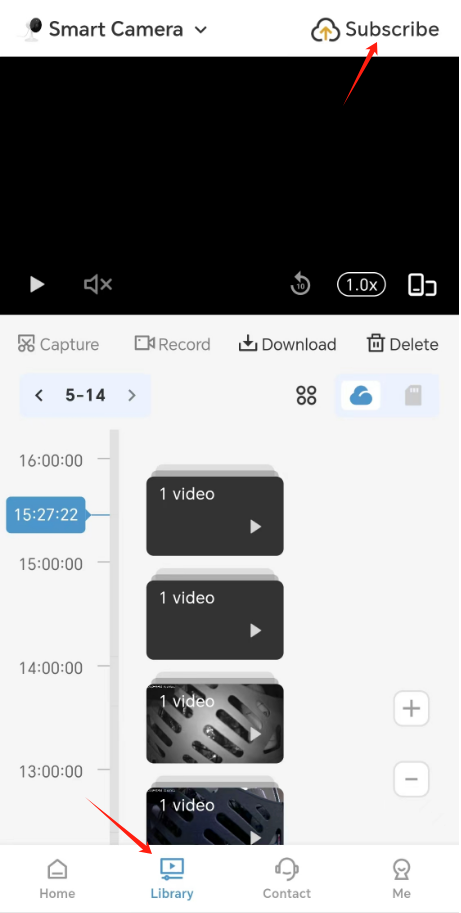
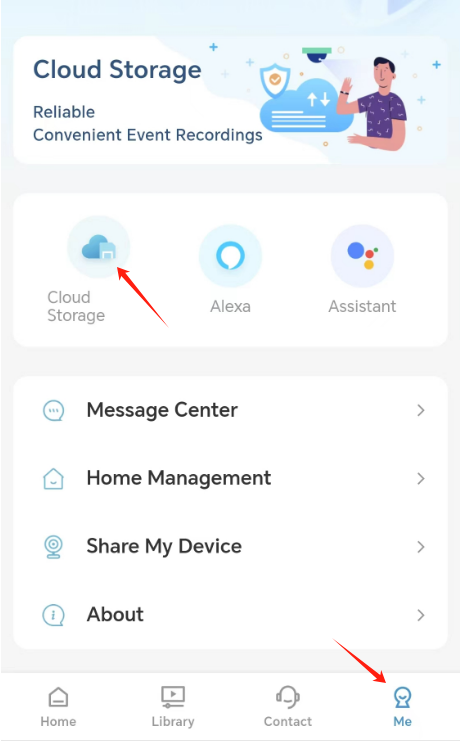
A: There are three ways to enter cloud storage page after subscribing cloud plan:
Method 1: Preview page → Cloud tab
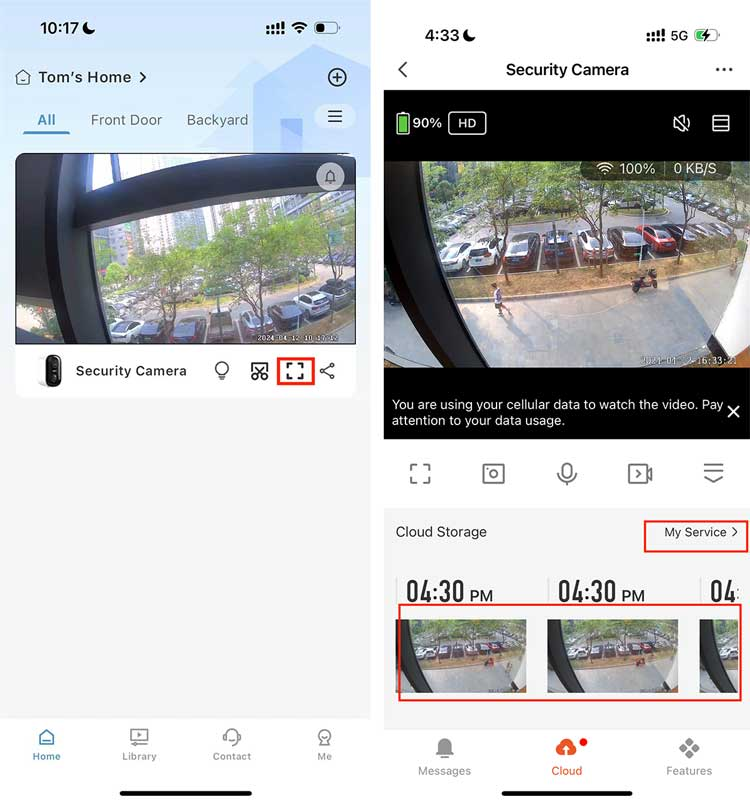
Method 2: Library tab → Subscribe icon
Method 3: Me tab → Cloud Storage entry
Method 1: Preview page → Cloud tab
Method 2: Library tab → Subscribe icon
Method 3: Me tab → Cloud Storage entry
Q: How to activate cloud subscription?
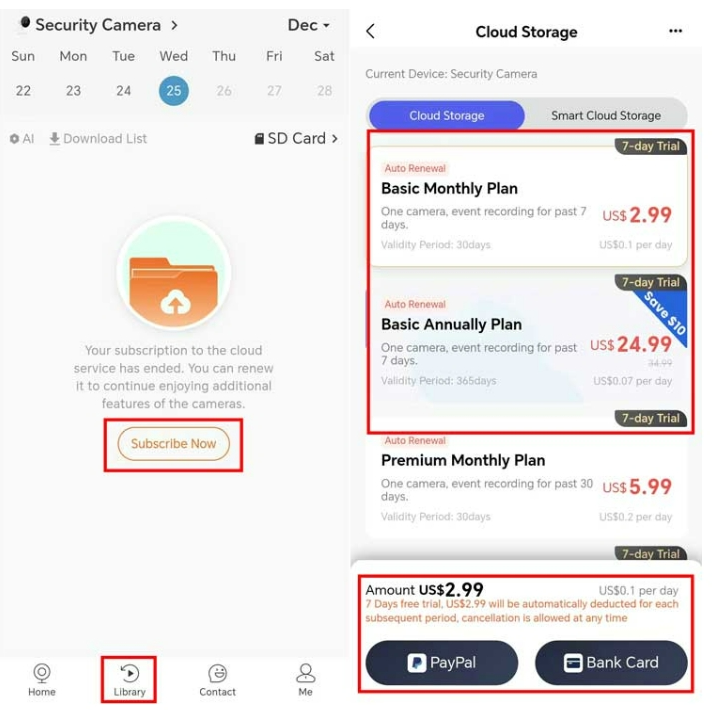
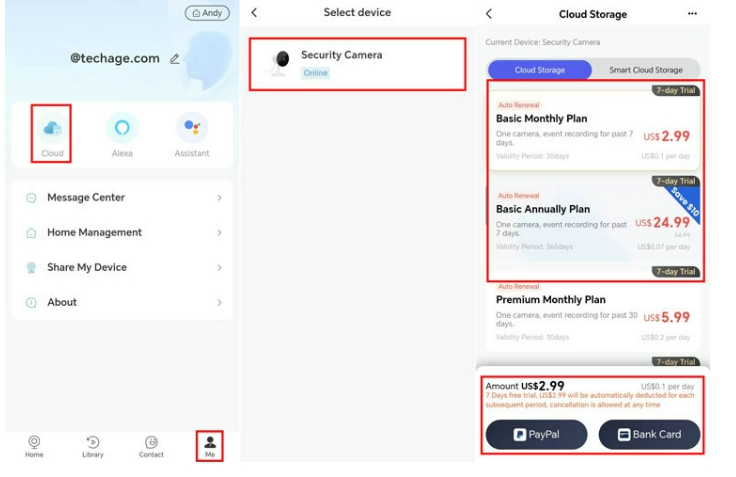
A: Three ways to enter cloud subscription page to buy plans:
1. Library page: Click "Subscribe Now", select plan and complete payment.
2. Me page: Click Cloud icon, choose device and subscribe.
3. Device Settings: Enter VAS menu and open Cloud Storage to purchase.
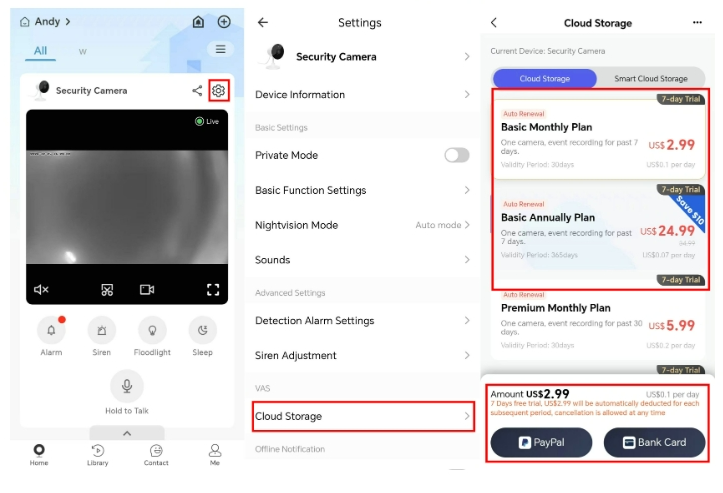
Available plans: Basic Monthly ($2.99), Basic Annual ($24.99), Premium Monthly ($5.99), all support 7-day free trial.
1. Library page: Click "Subscribe Now", select plan and complete payment.
2. Me page: Click Cloud icon, choose device and subscribe.
3. Device Settings: Enter VAS menu and open Cloud Storage to purchase.
Available plans: Basic Monthly ($2.99), Basic Annual ($24.99), Premium Monthly ($5.99), all support 7-day free trial.
Q: How to Add device by AP Mode?
A: Use AP mode if QR code WiFi pairing fails:
Note: Camera only supports 2.4GHz WiFi, cannot connect 5GHz network.
1. Click "Add a device" button
2. Select corresponding device model
3. Switch to AP mode at top-right corner
4. Fill your WiFi name and password
5. Connect phone hotspot "Smartlife-XXXX", return to APP
Tutorial video: https://youtu.be/RYw3LClyOvE
Note: Camera only supports 2.4GHz WiFi, cannot connect 5GHz network.
1. Click "Add a device" button
2. Select corresponding device model
3. Switch to AP mode at top-right corner
4. Fill your WiFi name and password
5. Connect phone hotspot "Smartlife-XXXX", return to APP
Tutorial video: https://youtu.be/RYw3LClyOvE
Q: How to cancel the auto subscription for cloud storage?
A: Operation path: Home → Full-Screen Preview → Cloud → My Service → My subscription → Unsubscribe
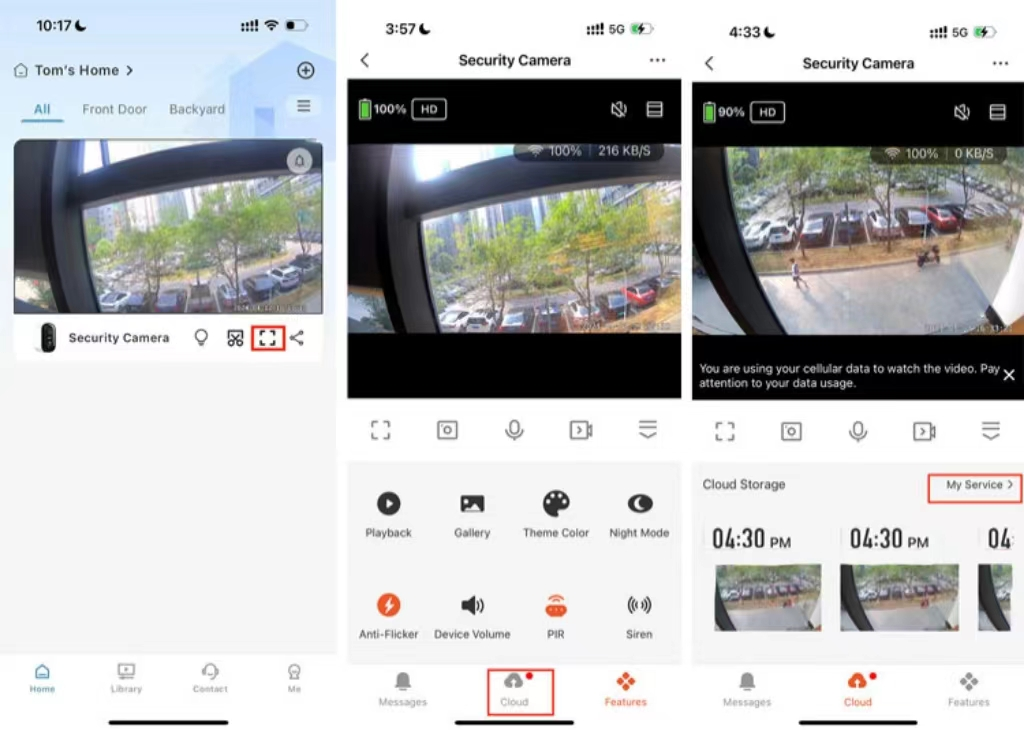
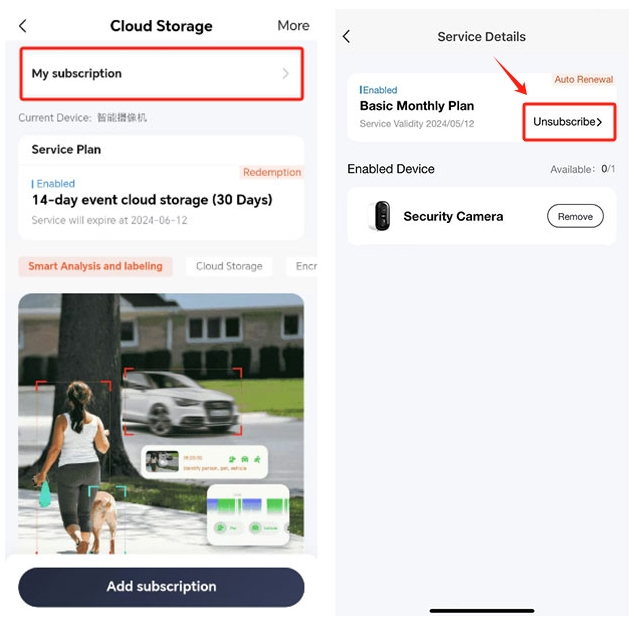
Note: You can cancel auto-renewal at any time before next billing cycle.
Note: You can cancel auto-renewal at any time before next billing cycle.
Q: How to change the lighting mode for plug in camera?
A: Plug-in camera has 3 night vision modes, path: Settings → Nightvision Mode
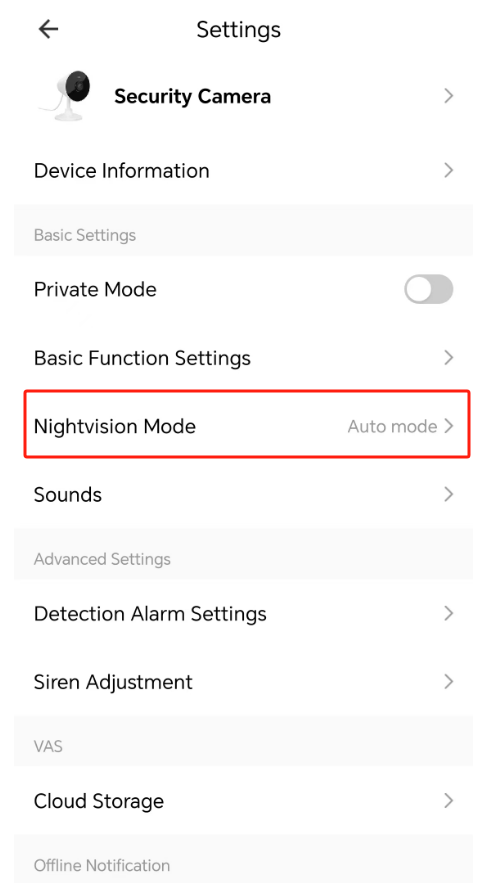
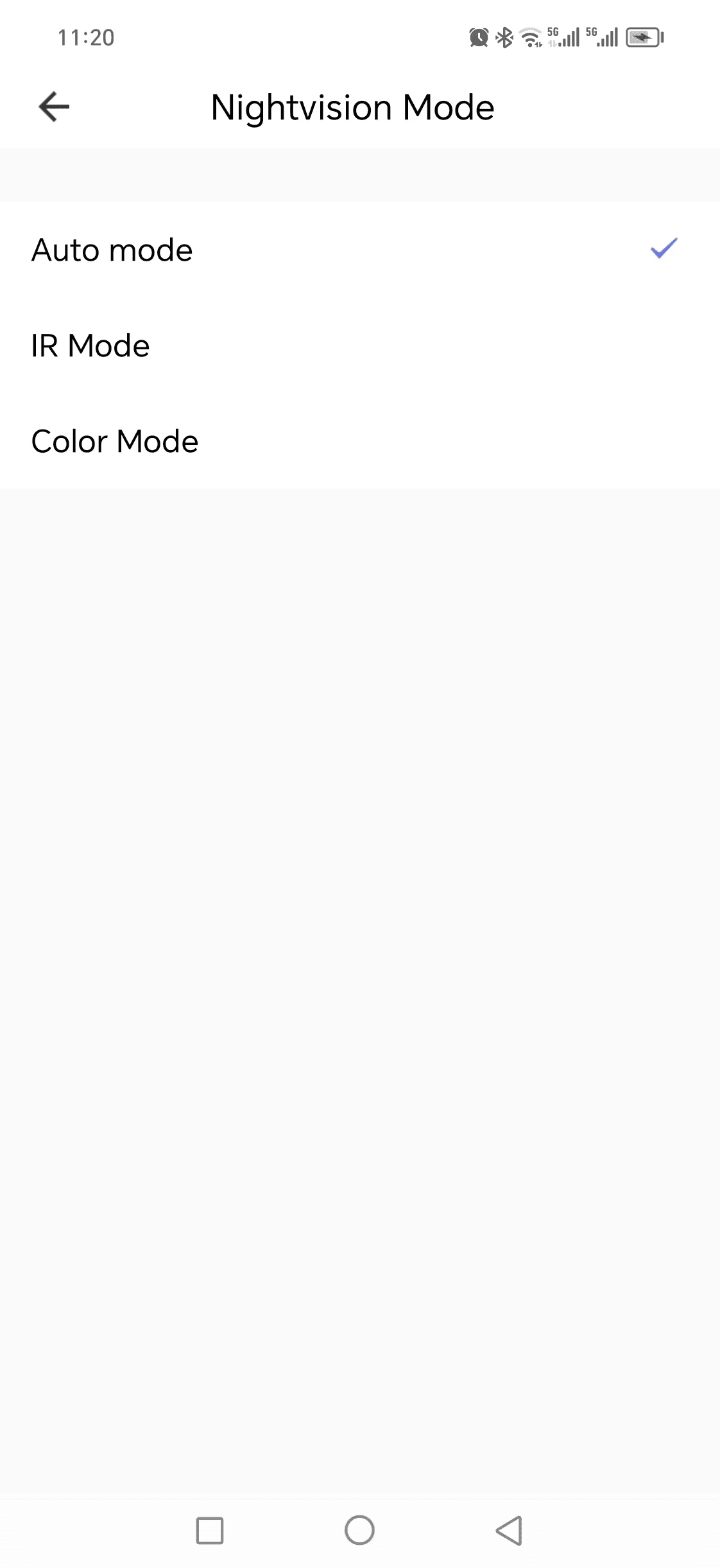
Mode introduction:
1. IR Mode: Day color image, night black-white IR image
2. Color Mode: Day color image, night full-color with white light
3. Auto Mode: Auto switch IR/white light; turn white light when motion detected, revert to IR after 1 min no movement
Mode introduction:
1. IR Mode: Day color image, night black-white IR image
2. Color Mode: Day color image, night full-color with white light
3. Auto Mode: Auto switch IR/white light; turn white light when motion detected, revert to IR after 1 min no movement
Q: How to change the lighting mode of battery camera?
A: Battery camera has 2 night vision modes, path: Settings → Nightvision Mode
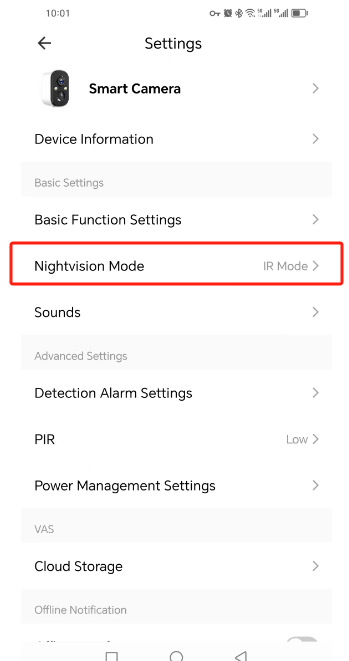
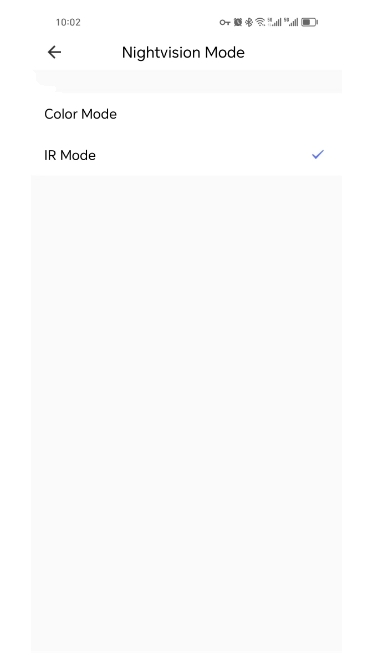
Mode introduction:
1. IR Mode: Day color image, night black-white infrared image
2. Color Mode: Day color image, night full-color with fill white light
Mode introduction:
1. IR Mode: Day color image, night black-white infrared image
2. Color Mode: Day color image, night full-color with fill white light
Q: How to connect your CG6E camera to a WiFi Network?
A: Pairing tutorial video: https://youtu.be/YzPzJWCtDOY
1. Generate WiFi QR code on your phone, let camera scan the QR code
Important reminder: CG6E only supports 2.4GHz WiFi. If you only have 5GHz network, please check our FAQ about separating 2.4G & 5G SSID to create a 2.4GHz network first.
1. Generate WiFi QR code on your phone, let camera scan the QR code
Important reminder: CG6E only supports 2.4GHz WiFi. If you only have 5GHz network, please check our FAQ about separating 2.4G & 5G SSID to create a 2.4GHz network first.
Q: How to set up a 2.4GHz WiFi network if you have a 5GHz WiFi network?
A: If your router supports dual band but only one Wi-Fi name appears on your phone, follow the steps:
1. Log in to router admin page (address printed on router back label) and enter Wireless page.
2. Enter 2.4GHz setting page, rename SSID to xxx-2.4G and save.
3. Enter 5GHz setting page, rename SSID to xxx-5G and save.
Note: After modifying SSID, all connected devices need to reconnect; password remains unchanged if you do not edit it.
We also have separate tutorials for ASUS, D-Link, NETGEAR and TP-Link routers in other FAQs.
1. Log in to router admin page (address printed on router back label) and enter Wireless page.
2. Enter 2.4GHz setting page, rename SSID to xxx-2.4G and save.
3. Enter 5GHz setting page, rename SSID to xxx-5G and save.
Note: After modifying SSID, all connected devices need to reconnect; password remains unchanged if you do not edit it.
We also have separate tutorials for ASUS, D-Link, NETGEAR and TP-Link routers in other FAQs.
Q: How to set up and use Alexa?
A: Two operation methods are shown in the tutorial video:
Tutorial link: https://youtu.be/bVg7PCgYE7o
Tutorial link: https://youtu.be/bVg7PCgYE7o
Q: How to enable Anti-Flicker feature?
A: If your camera screen has flickering effect as shown below, enable anti-flicker:
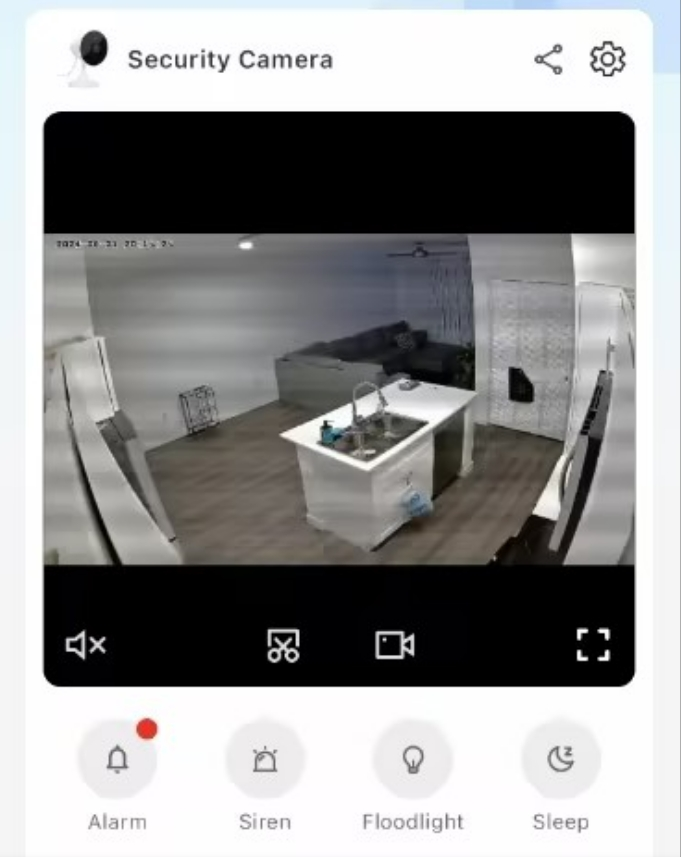
Operation steps:
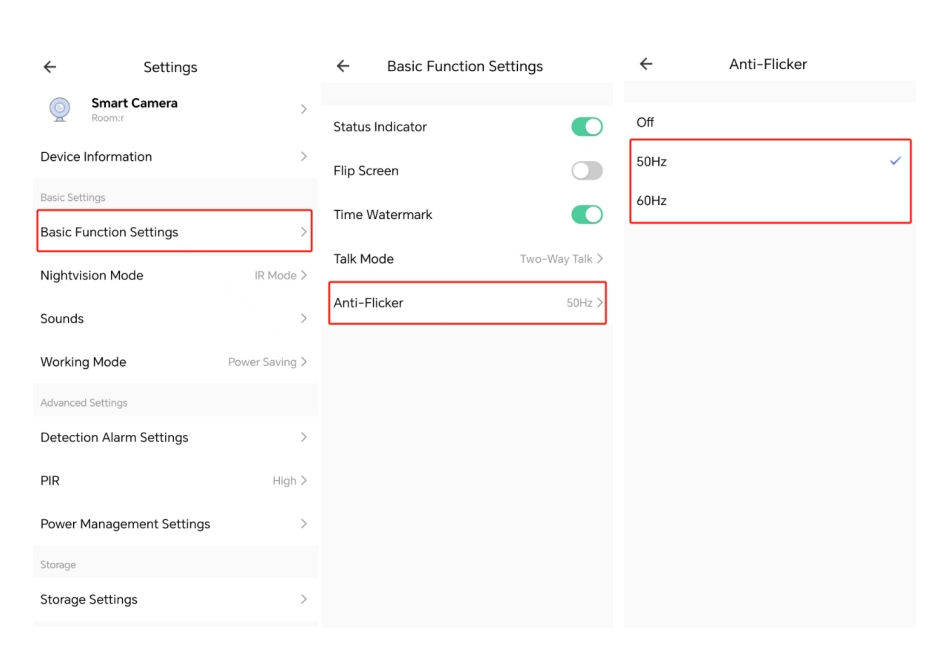
Switch between 50Hz and 60Hz to match your local power frequency.
Note: This function only works for battery cameras. Plug-in cameras cannot use this feature; adjust camera angle to solve flicker instead.
Operation steps:
Switch between 50Hz and 60Hz to match your local power frequency.
Note: This function only works for battery cameras. Plug-in cameras cannot use this feature; adjust camera angle to solve flicker instead.
Q: How to enable motion detection?
A: Operation path: Home --> Settings --> Detection Alarm Settings
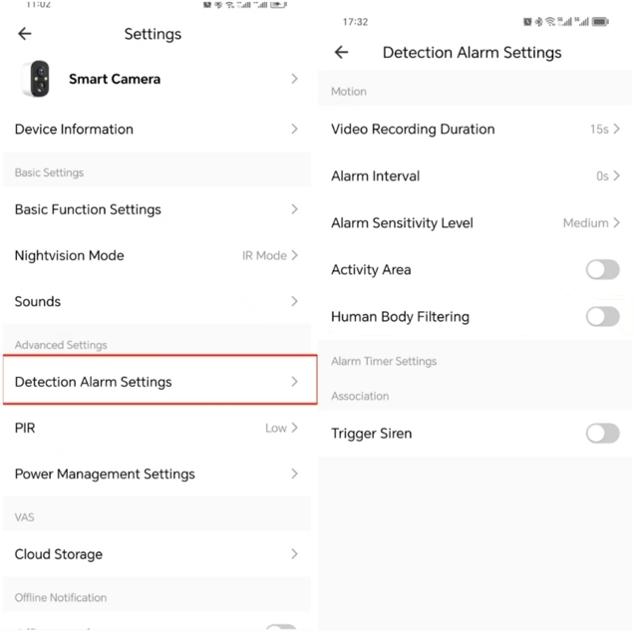
Function explanation: Turn on Human Body Filtering to only trigger human alarms; turn it off to receive all general motion alerts.
Function explanation: Turn on Human Body Filtering to only trigger human alarms; turn it off to receive all general motion alerts.
Q: How to enable two way audio?
A: Operation path: Settings--Basic Function Settings--Talk Mode--Two-Way Talk
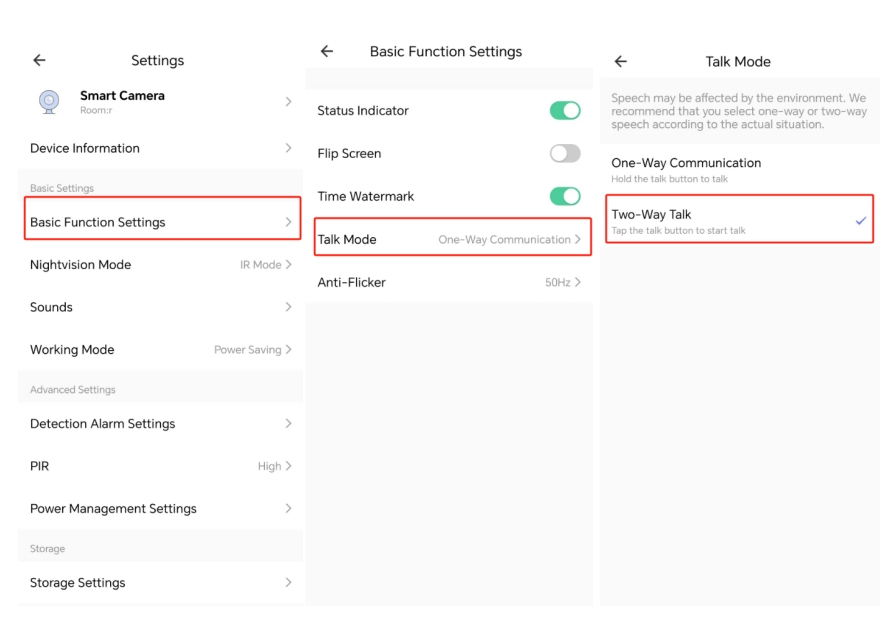
Tip: Choose One-Way Communication or Two-Way Talk according to your actual usage environment.
Tip: Choose One-Way Communication or Two-Way Talk according to your actual usage environment.
Q: How to find APP version information?
A: Operation path: Me---About
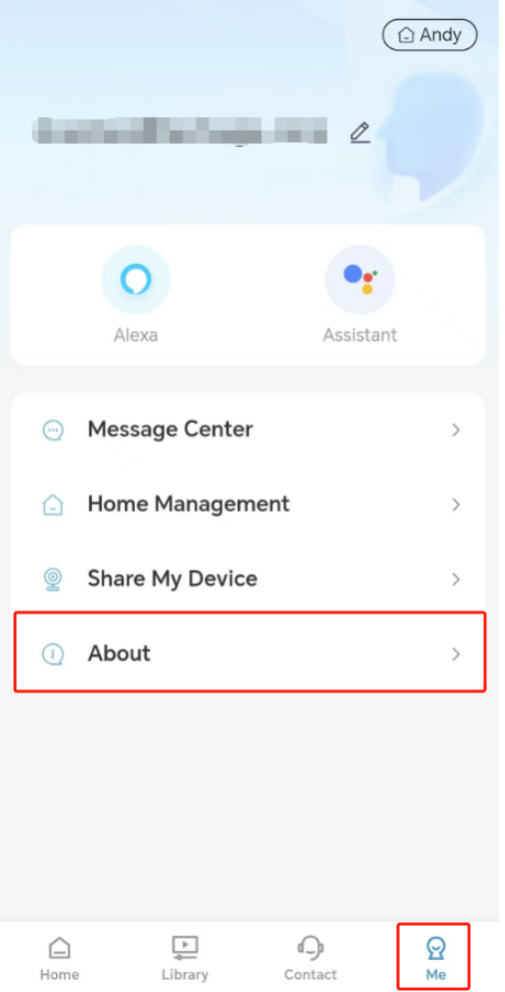
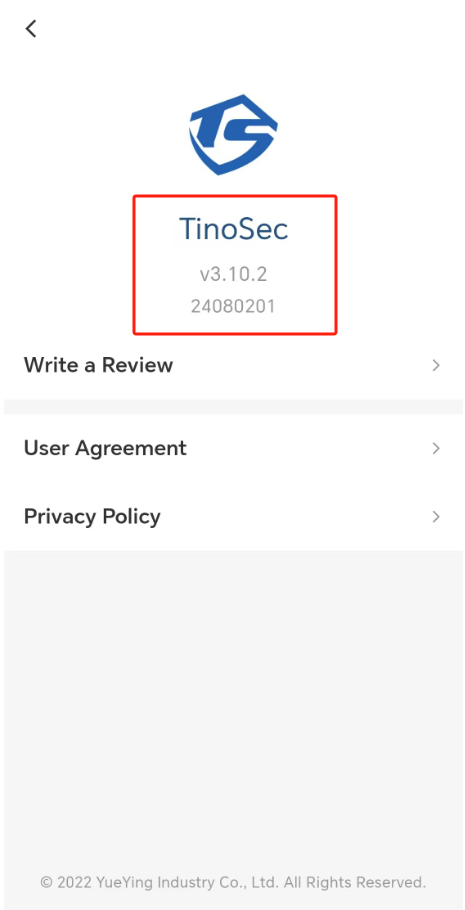
The page displays TinoSec APP full version code.
The page displays TinoSec APP full version code.
Q: How to find your account?
A: Operation path: Me - Tap top left user avatar - Account page
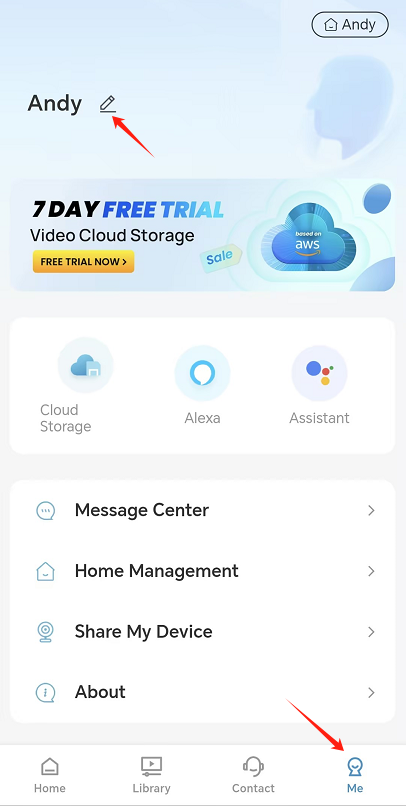
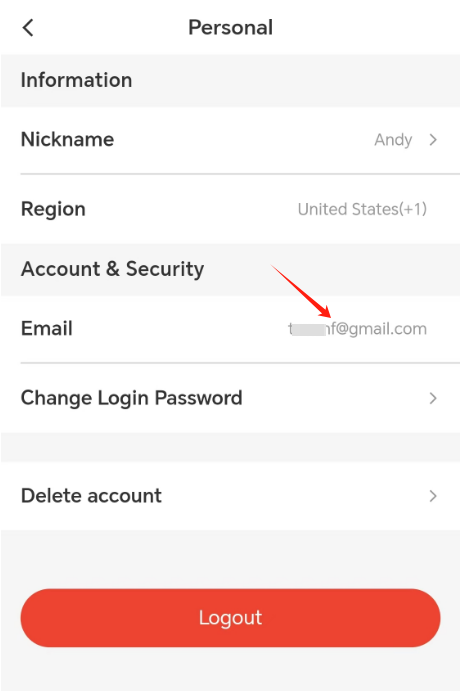
You can view registered email, region, password modification and account deletion options here.
You can view registered email, region, password modification and account deletion options here.
Q: How to find your firmware version?
A: Operation path: Settings--Device Update
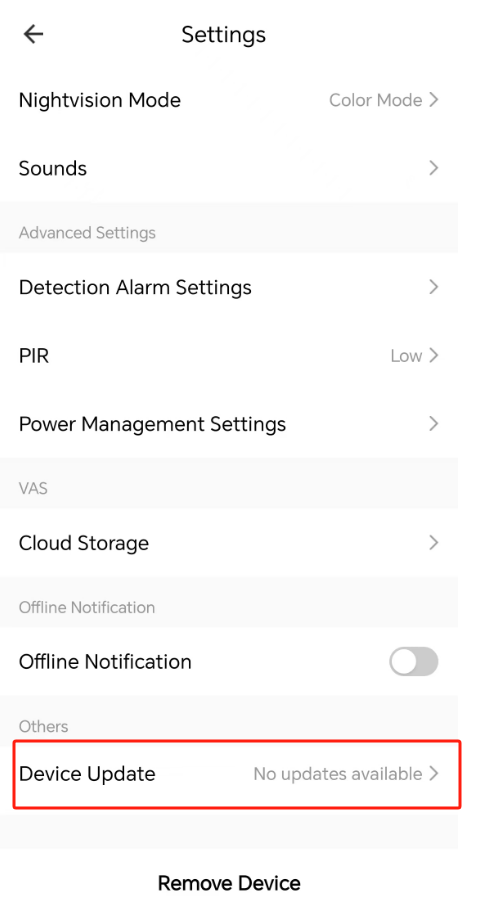
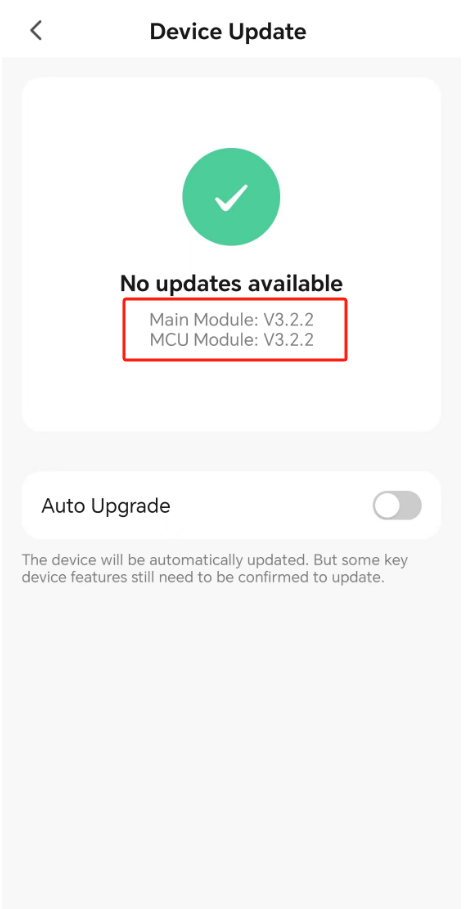
Main Module and MCU Module version numbers are displayed on this page.
Main Module and MCU Module version numbers are displayed on this page.
Q: How to format a Micro SD card?
A: Operation path: Home-->Settings-->Storage Settings-->Format
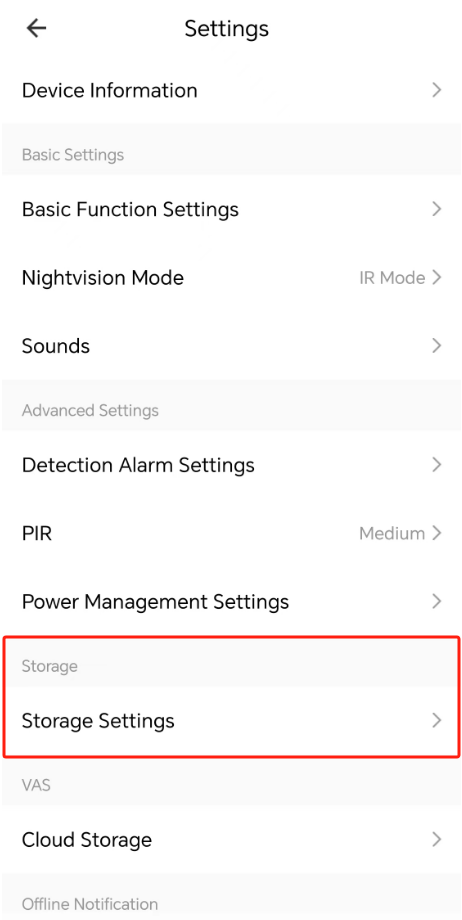
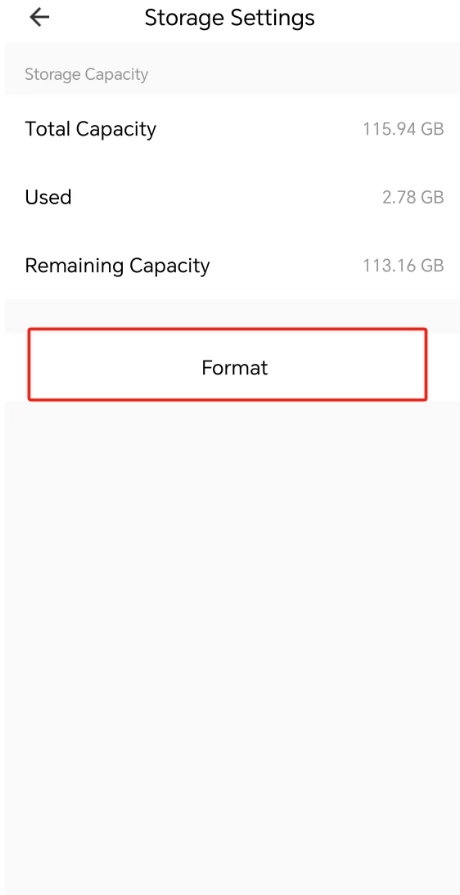
Note: The Storage Settings menu will not show up if no TF card is inserted or the card cannot be recognized by the camera.
Note: The Storage Settings menu will not show up if no TF card is inserted or the card cannot be recognized by the camera.
Q: How to install PIR correctly?
A: Correct camera installation rules for better PIR detection:
1. Recommended installation height: 7-10ft (2-3m) above ground
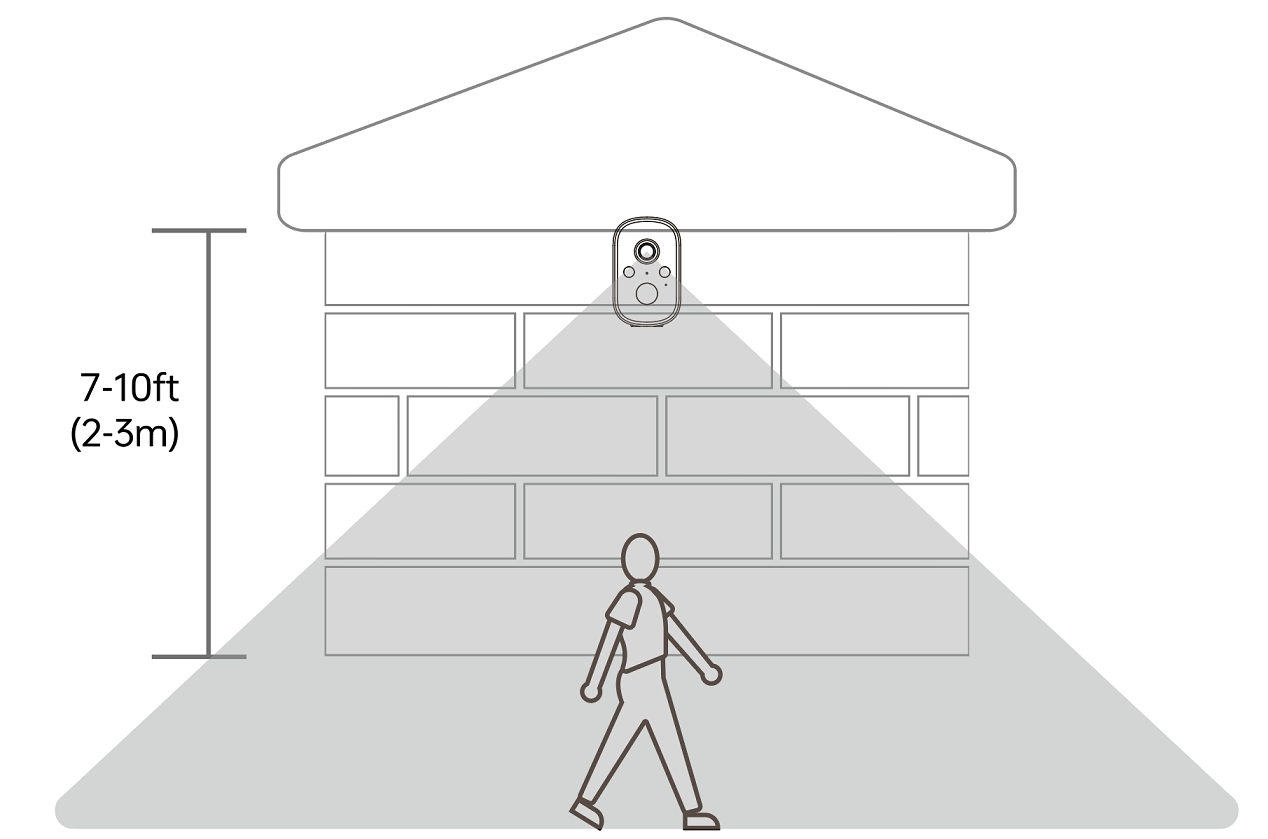
2. PIR is sensitive to lateral human movement, insensitive to straight forward/backward motion
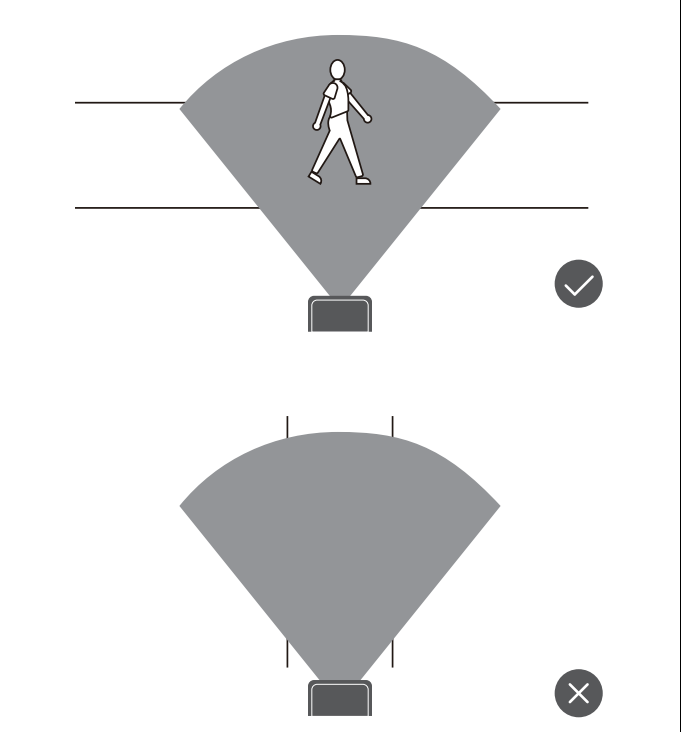
Install the camera to capture horizontal passing people for optimal alert performance.
1. Recommended installation height: 7-10ft (2-3m) above ground
2. PIR is sensitive to lateral human movement, insensitive to straight forward/backward motion
Install the camera to capture horizontal passing people for optimal alert performance.
Q: How to set up patrol areas?
A: Complete patrol setup steps:
Step1 Set preset site positions (skip for Panoramic Patrol)
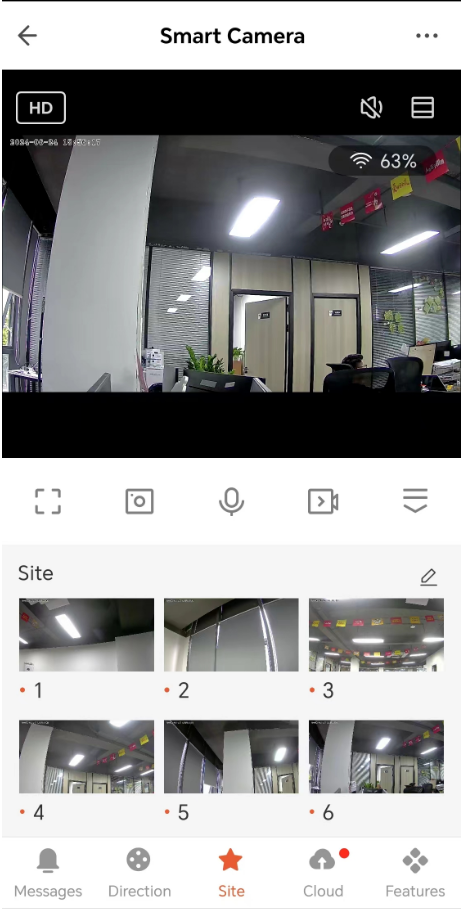
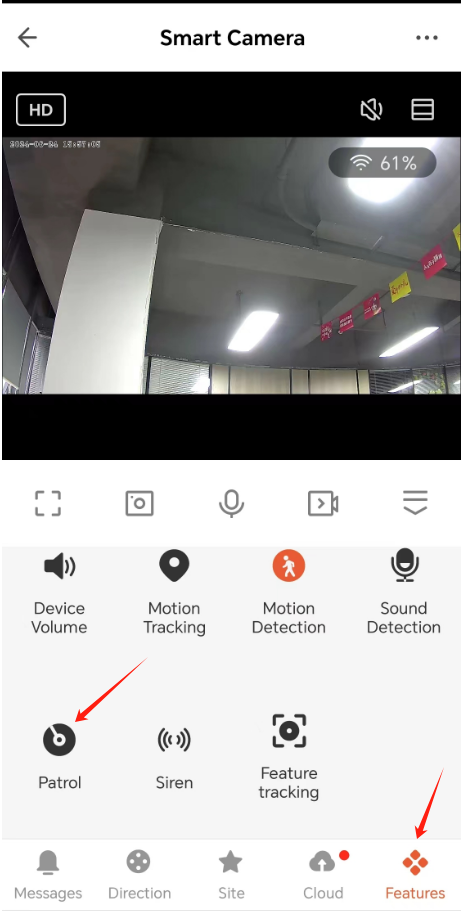
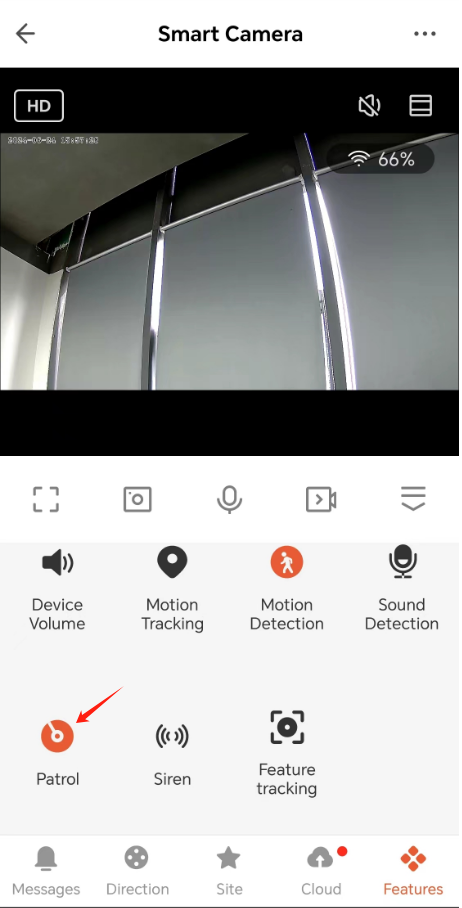
Step2 Enter Patrol function via Features tab
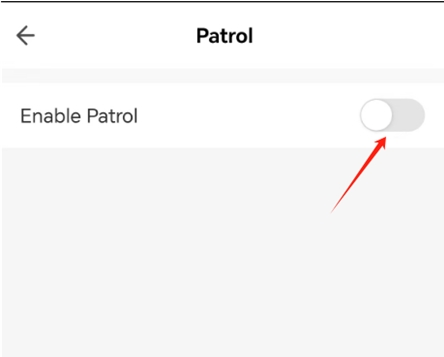
Step3 Toggle to enable Patrol switch
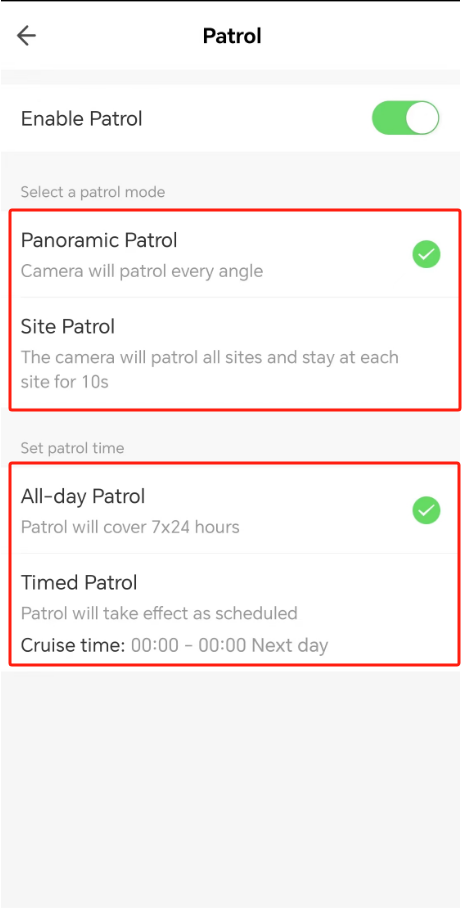
Step4 Select patrol mode & patrol time schedule
After setup, the Patrol icon turns red on preview page
Two modes: Panoramic Patrol (full rotation) / Site Patrol (preset points stay 10s each); All-day or Timed schedule available.
Step1 Set preset site positions (skip for Panoramic Patrol)
Step2 Enter Patrol function via Features tab
Step3 Toggle to enable Patrol switch
Step4 Select patrol mode & patrol time schedule
After setup, the Patrol icon turns red on preview page
Two modes: Panoramic Patrol (full rotation) / Site Patrol (preset points stay 10s each); All-day or Timed schedule available.
Q: How to Reset and Reconfigure Your Camera When It Goes Offline?
A: Different camera models have separate reset operations:
Model DP04 / K04: Power on, hold reset button for 3 seconds until prompt sound
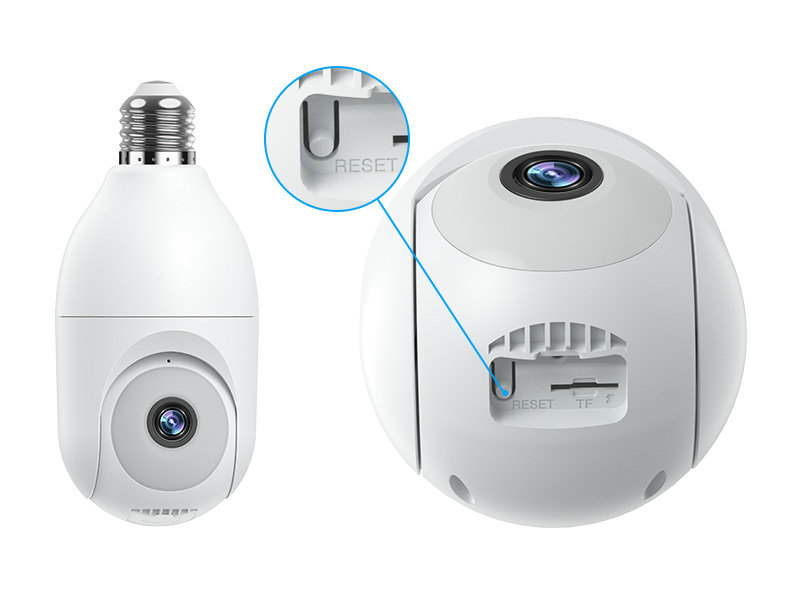
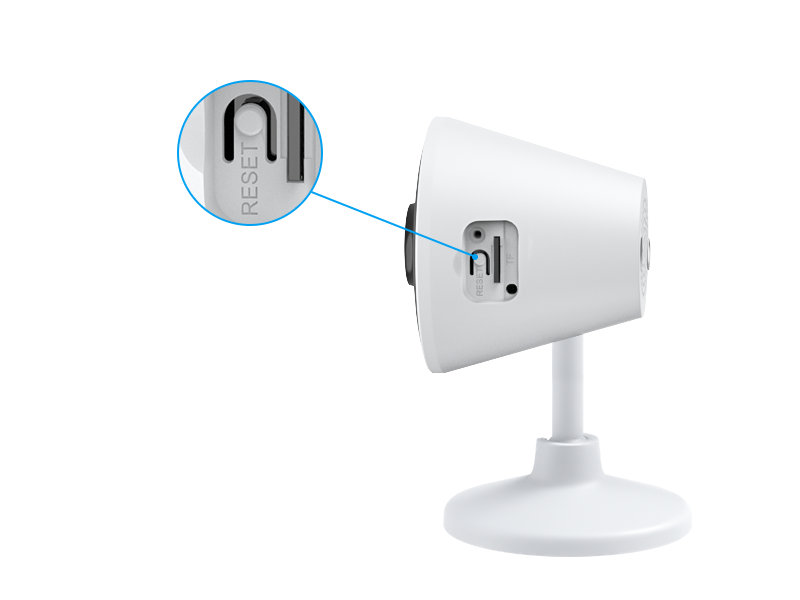
Model CA45: Hold reset button for 10 seconds until prompt sound
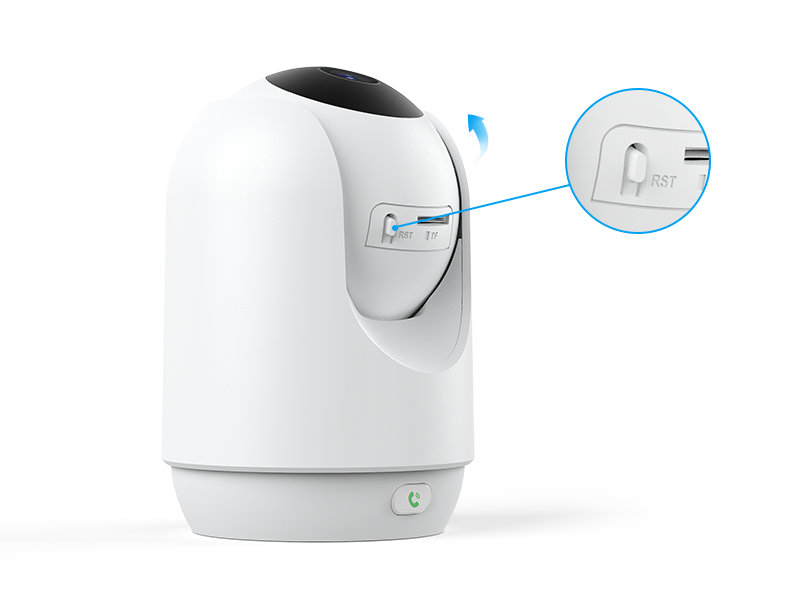
Model CG6E: Double tap power button quickly when powered on
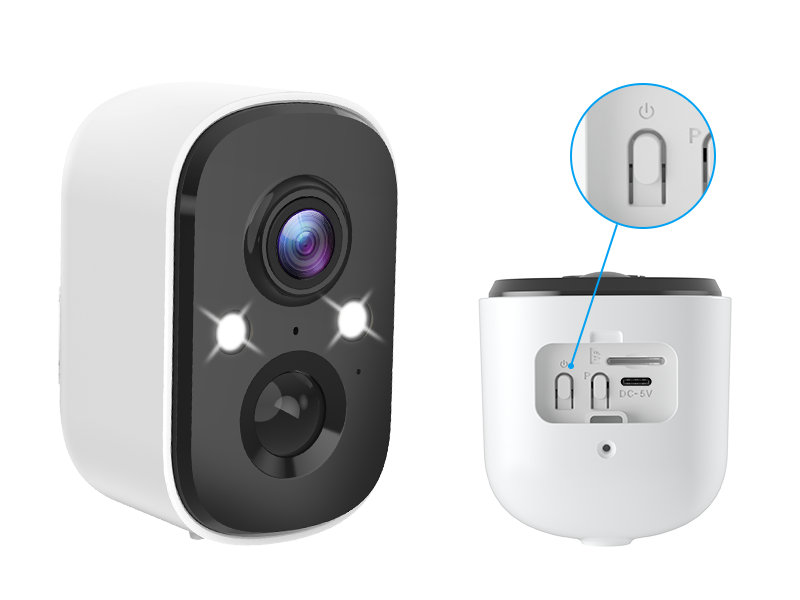
After reset, follow standard device adding process in APP. Contact support if offline issue persists.
Model DP04 / K04: Power on, hold reset button for 3 seconds until prompt sound
Model CA45: Hold reset button for 10 seconds until prompt sound
Model CG6E: Double tap power button quickly when powered on
After reset, follow standard device adding process in APP. Contact support if offline issue persists.
Q: How to set a schedule recording time?
A: Operation path: Settings---Recording settings---Schedule---Add
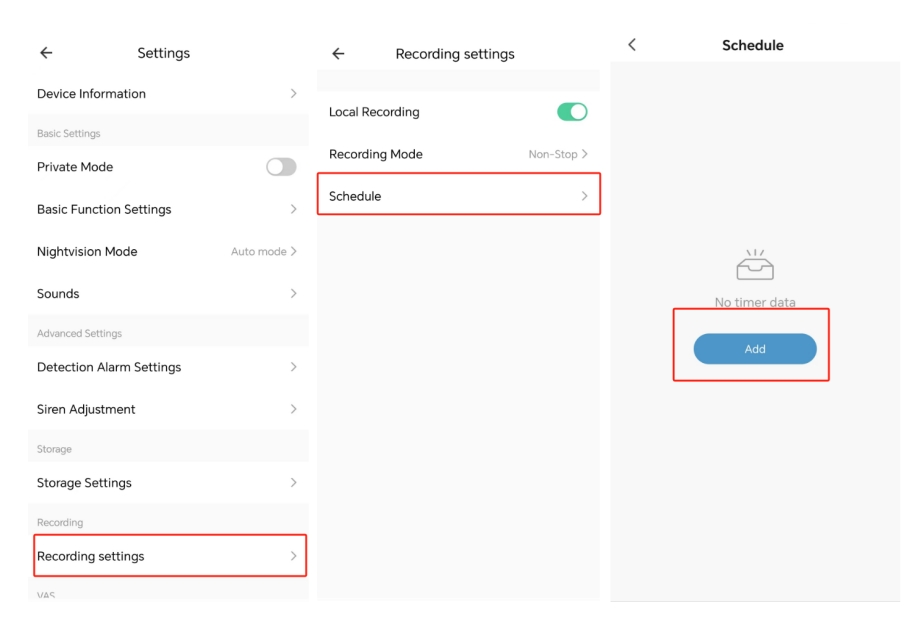
Note: This function only supports plug-in camera models: K04, K07, DP04, CA45.
Note: This function only supports plug-in camera models: K04, K07, DP04, CA45.
Q: How to set PIR motion sensitivity?
A: Operation path: Home-->Settings-->PIR
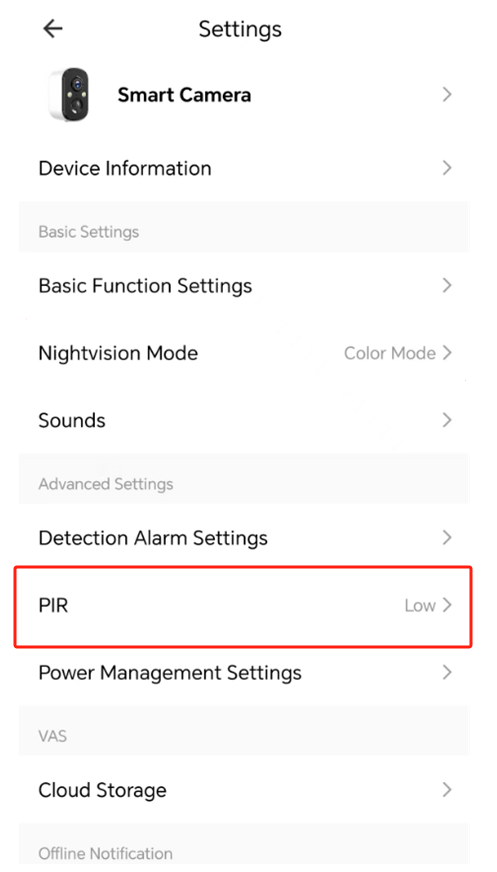
Sensitivity levels: Low (3M), Medium (5M), High (8M). Adjust according to installation environment.
Sensitivity levels: Low (3M), Medium (5M), High (8M). Adjust according to installation environment.
Q: How to set the Do Not Disturb Time for alarm notifications?
A: Operation path: Me--Message Center--Settings--Do-Not-Disturb Schedule--Add schedule--Set time & device
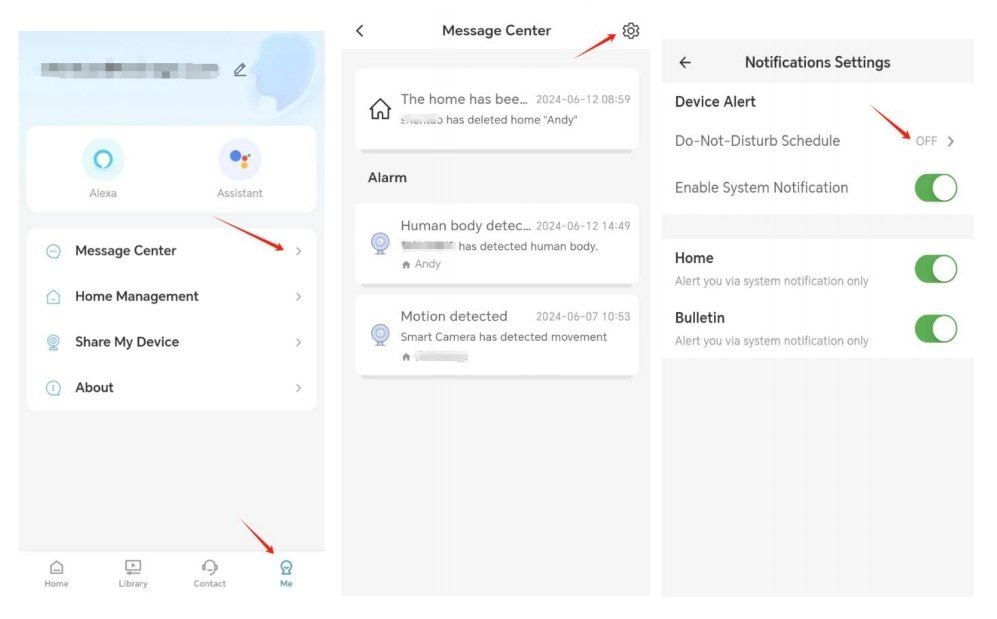
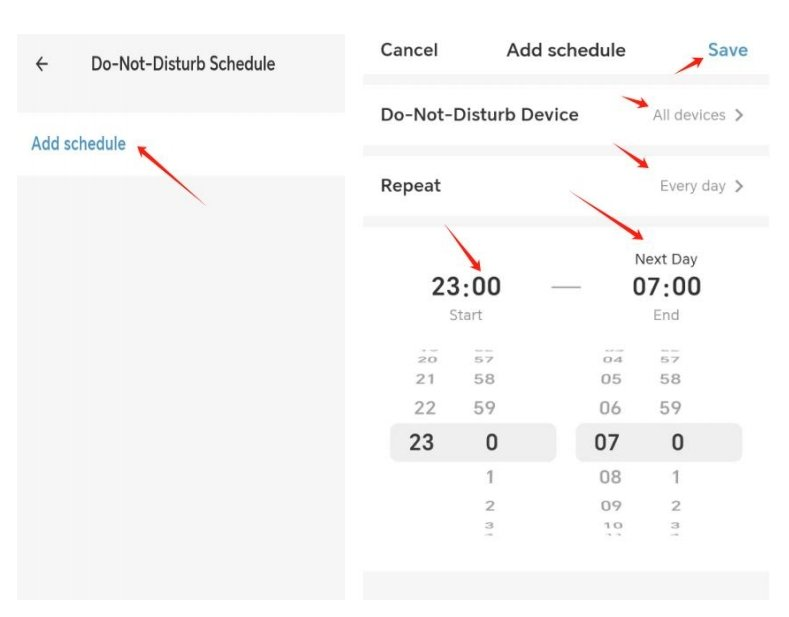
You can set daily quiet hours to block alarm push notifications automatically.
You can set daily quiet hours to block alarm push notifications automatically.
Q: How to set the video record duration time?
A: Operation path: Settings---Detection Alarm Settings----Video Recording Duration
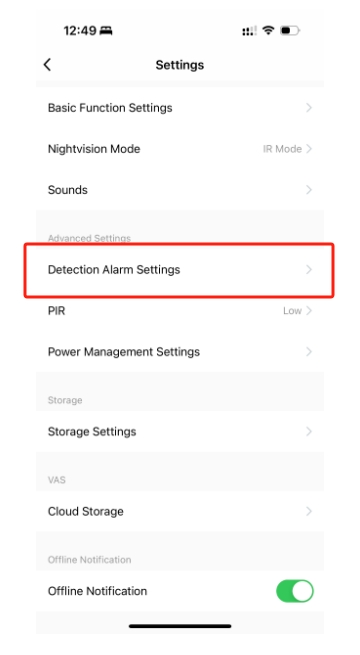
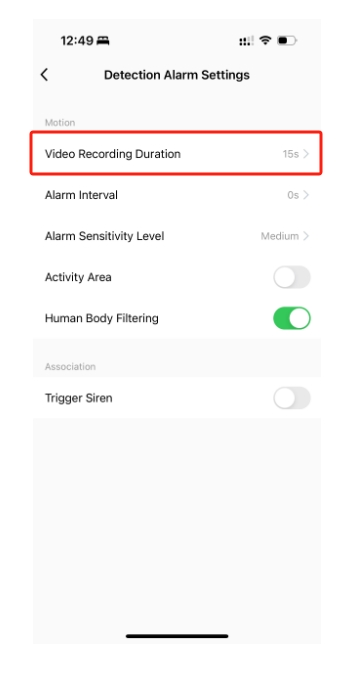
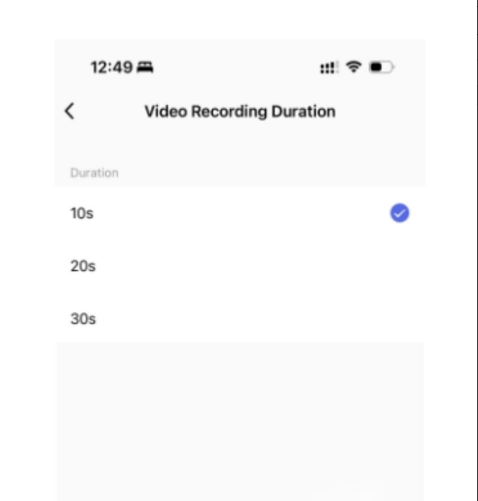
Note: This parameter only takes effect for battery cameras.
Note: This parameter only takes effect for battery cameras.
Q: How to download video files from SD card?
A: Step-by-step download guide:
1. Open full-screen live preview
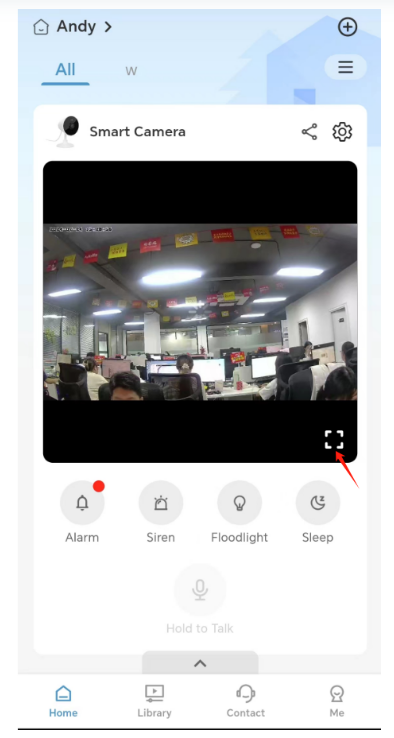
2. Tap bottom expand function button
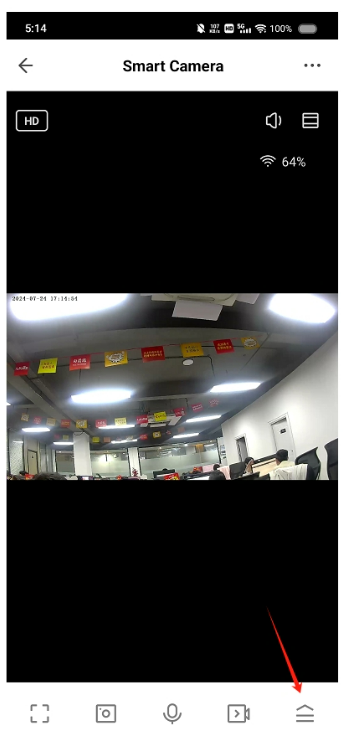
3. Select Playback button
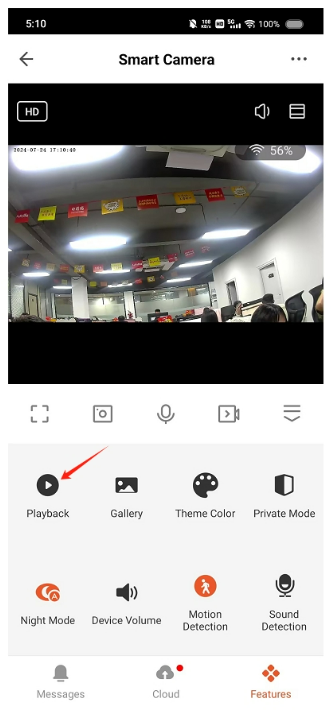
4. Tap download icon on timeline
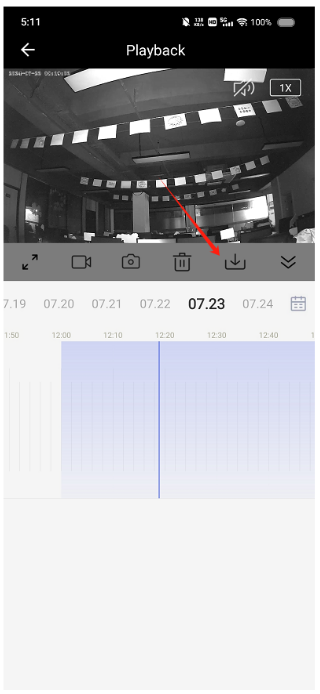
5. Drag yellow slider to select clip (max 10 mins) and confirm download
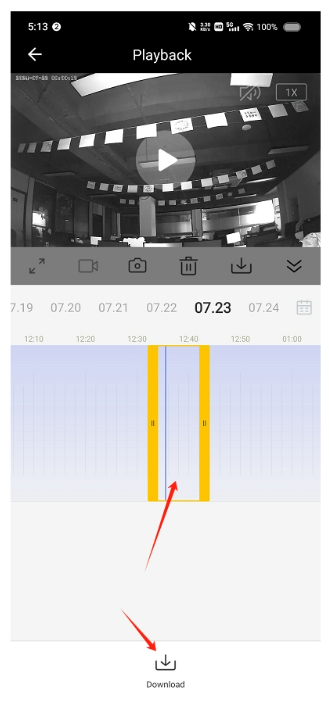
1. Open full-screen live preview
2. Tap bottom expand function button
3. Select Playback button
4. Tap download icon on timeline
5. Drag yellow slider to select clip (max 10 mins) and confirm download
Q: Why is the connection unsuccessful after scanning QR code?
A: Common failure reasons & solutions:
1. Camera not in pairing mode:
• Battery cam: Double click power button to enter "Ding Dong" prompt pairing mode
• Plug-in cam: Reboot or hold reset pin 3 seconds
2. Lens covered with protective film / dirty fingerprints: Clean lens surface
3. QR code focus issue: Keep distance 6~12 inches (15~30cm), avoid backlight/dark environment, move phone slowly to focus
If troubleshooting fails, submit feedback ticket inside APP for technical help.
1. Camera not in pairing mode:
• Battery cam: Double click power button to enter "Ding Dong" prompt pairing mode
• Plug-in cam: Reboot or hold reset pin 3 seconds
2. Lens covered with protective film / dirty fingerprints: Clean lens surface
3. QR code focus issue: Keep distance 6~12 inches (15~30cm), avoid backlight/dark environment, move phone slowly to focus
If troubleshooting fails, submit feedback ticket inside APP for technical help.
Q: How to install solar panels?
A: Solar panel installation guide:
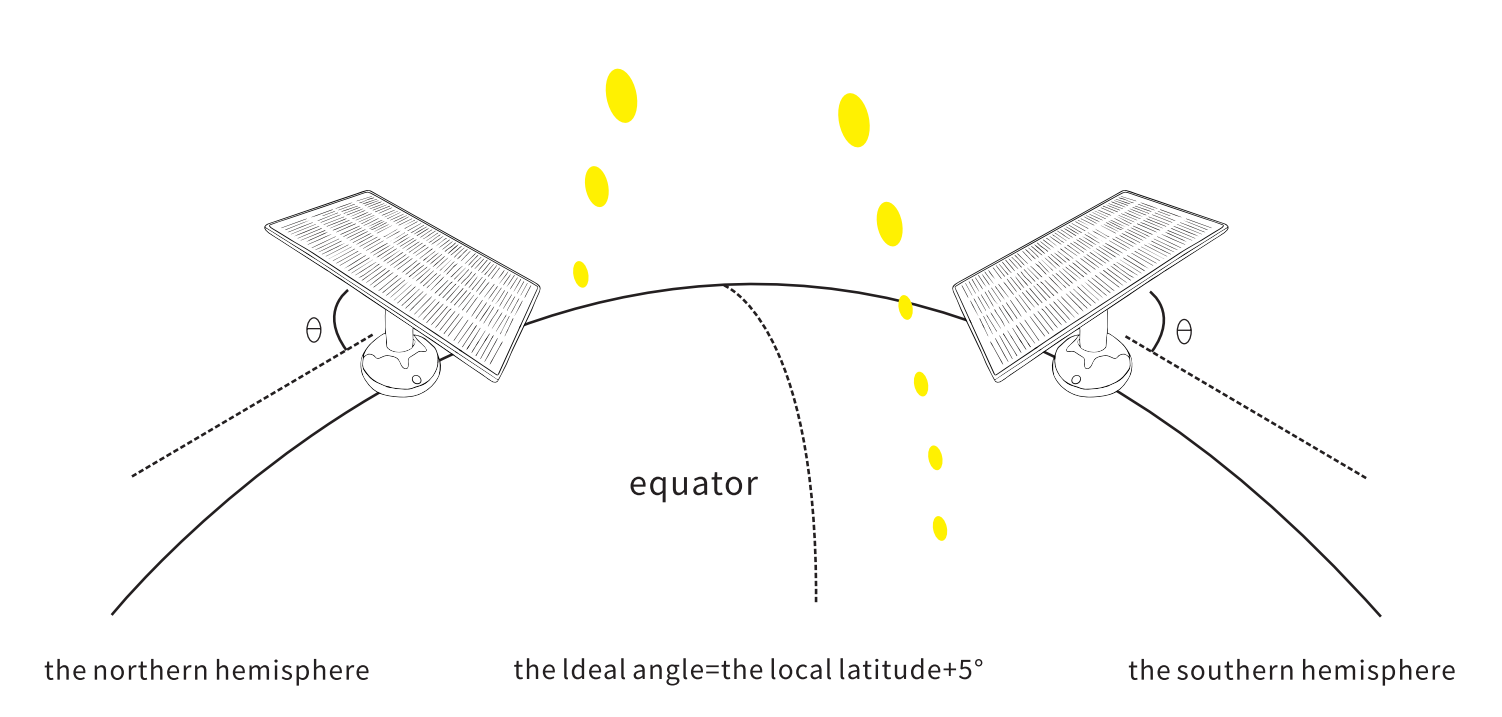
1. Angle adjustment rule: Northern hemisphere tilt toward equator +5°, Southern hemisphere reverse
2. Mount bracket drilling and fixing
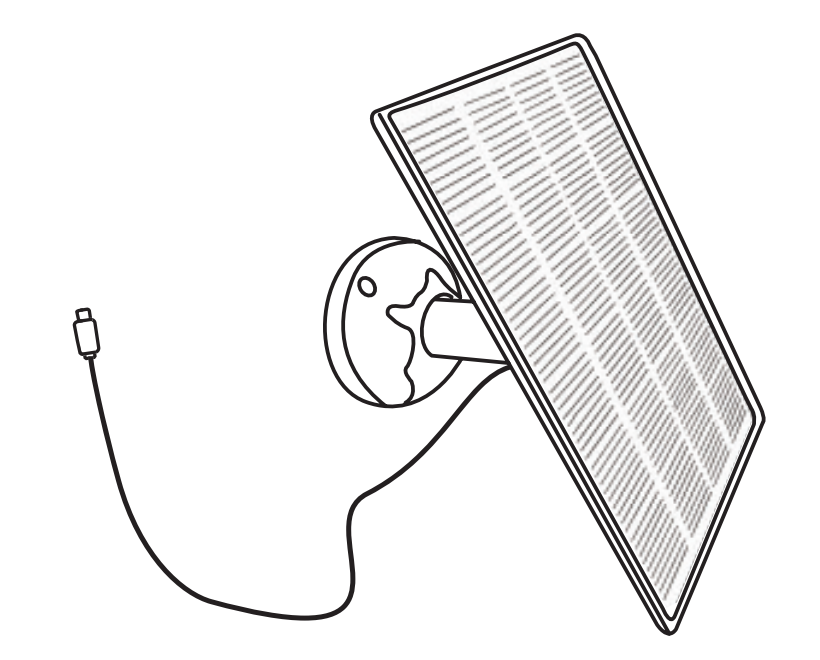
3. Loosen knob to adjust panel angle toward direct sunlight then lock
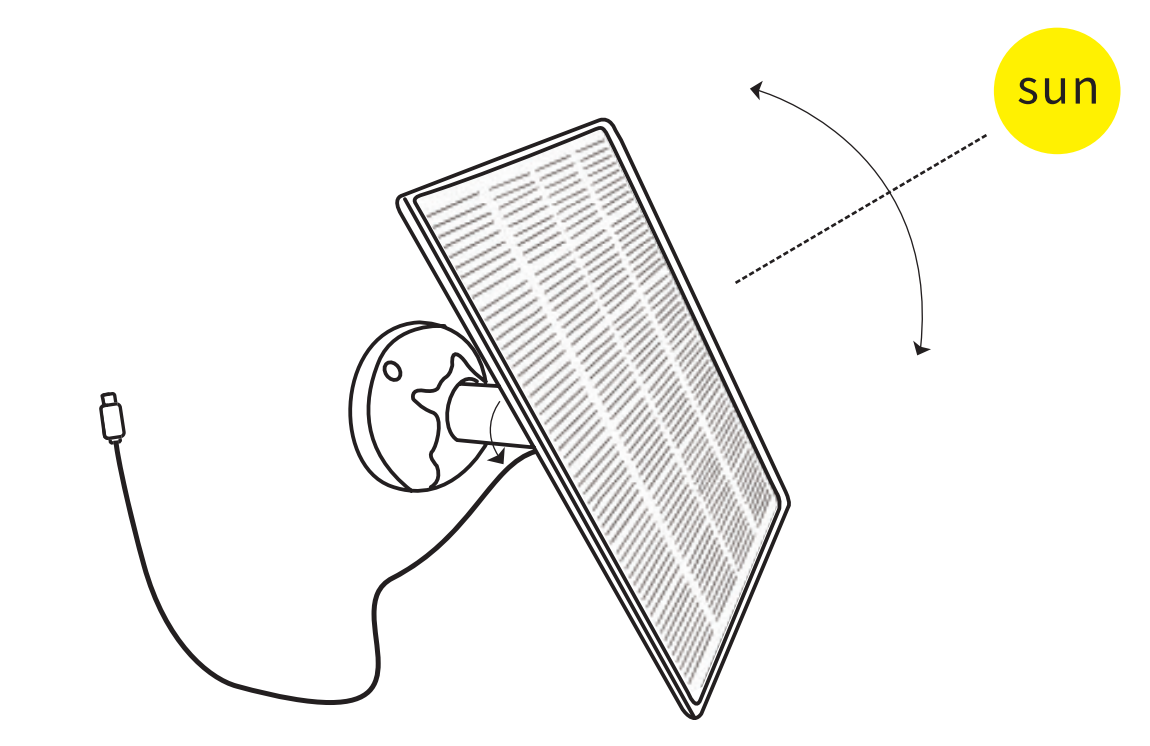
4. Connect Type-C cable to camera charging port
Install in full sun position; daily power generation depends on weather & seasonal sunlight hours. All mounting screws & drill template included in kit.
1. Angle adjustment rule: Northern hemisphere tilt toward equator +5°, Southern hemisphere reverse
2. Mount bracket drilling and fixing
3. Loosen knob to adjust panel angle toward direct sunlight then lock
4. Connect Type-C cable to camera charging port
Install in full sun position; daily power generation depends on weather & seasonal sunlight hours. All mounting screws & drill template included in kit.
Q: How to share the camera with other accounts?
A: Sharing operation steps (only admin account can share):
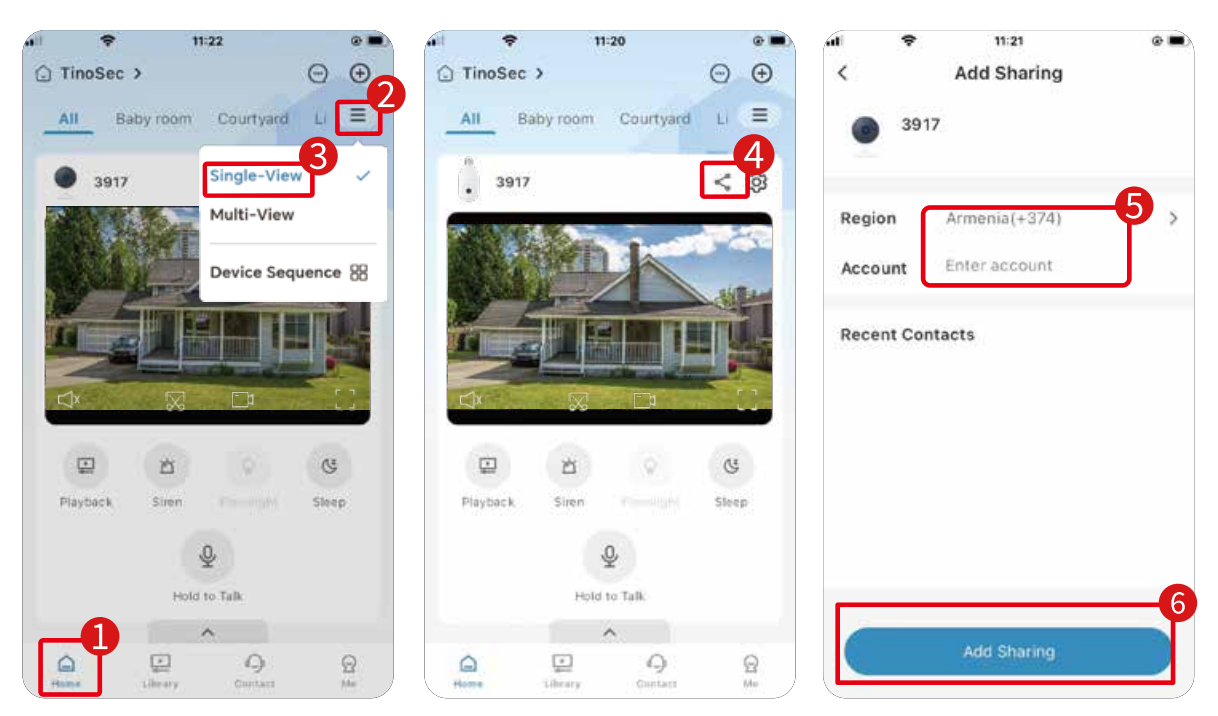
1. Tap Home tab on bottom menu
2. Open single view of target camera
3. Tap share icon on preview page
4. Select country/region code, input registered shared account email
5. Tap Add Sharing to confirm
Restriction: Shared accounts must register under the same country/region as admin.
1. Tap Home tab on bottom menu
2. Open single view of target camera
3. Tap share icon on preview page
4. Select country/region code, input registered shared account email
5. Tap Add Sharing to confirm
Restriction: Shared accounts must register under the same country/region as admin.
Q: How to switch cloud storage devices under the same account?
A: Operation path: Library--Subscribe--My subscription--Remove bound device--Associate new device--Save
Tutorial video: https://youtu.be/suv_-pNwN3U
Tutorial video: https://youtu.be/suv_-pNwN3U
Q: How to turn on the white light or spotlight manually?
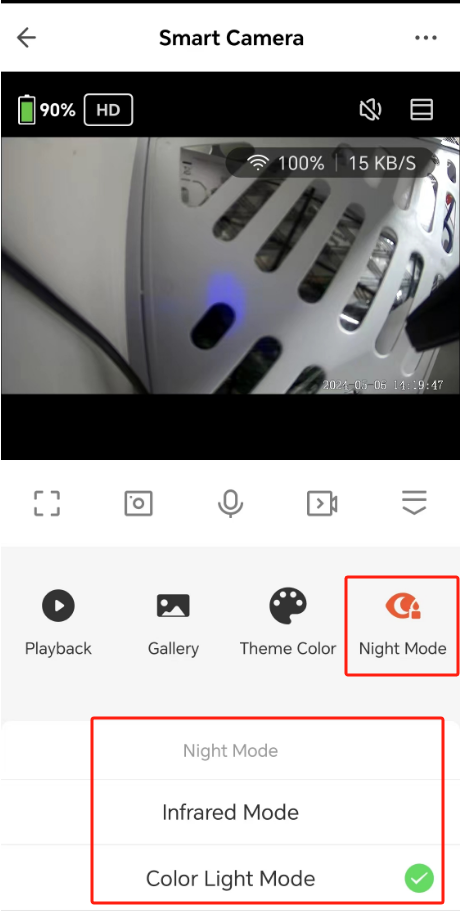
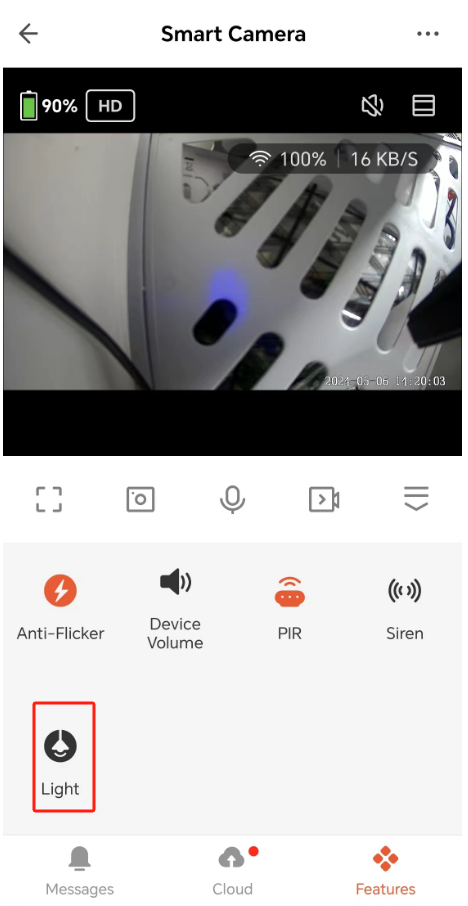
A: Three ways to activate color night light:
Method 1: Preview page Night Mode shortcut
Method 2: Full screen Features tab Light icon
Method3: Settings > Nightvision Mode > Color Mode permanent switch
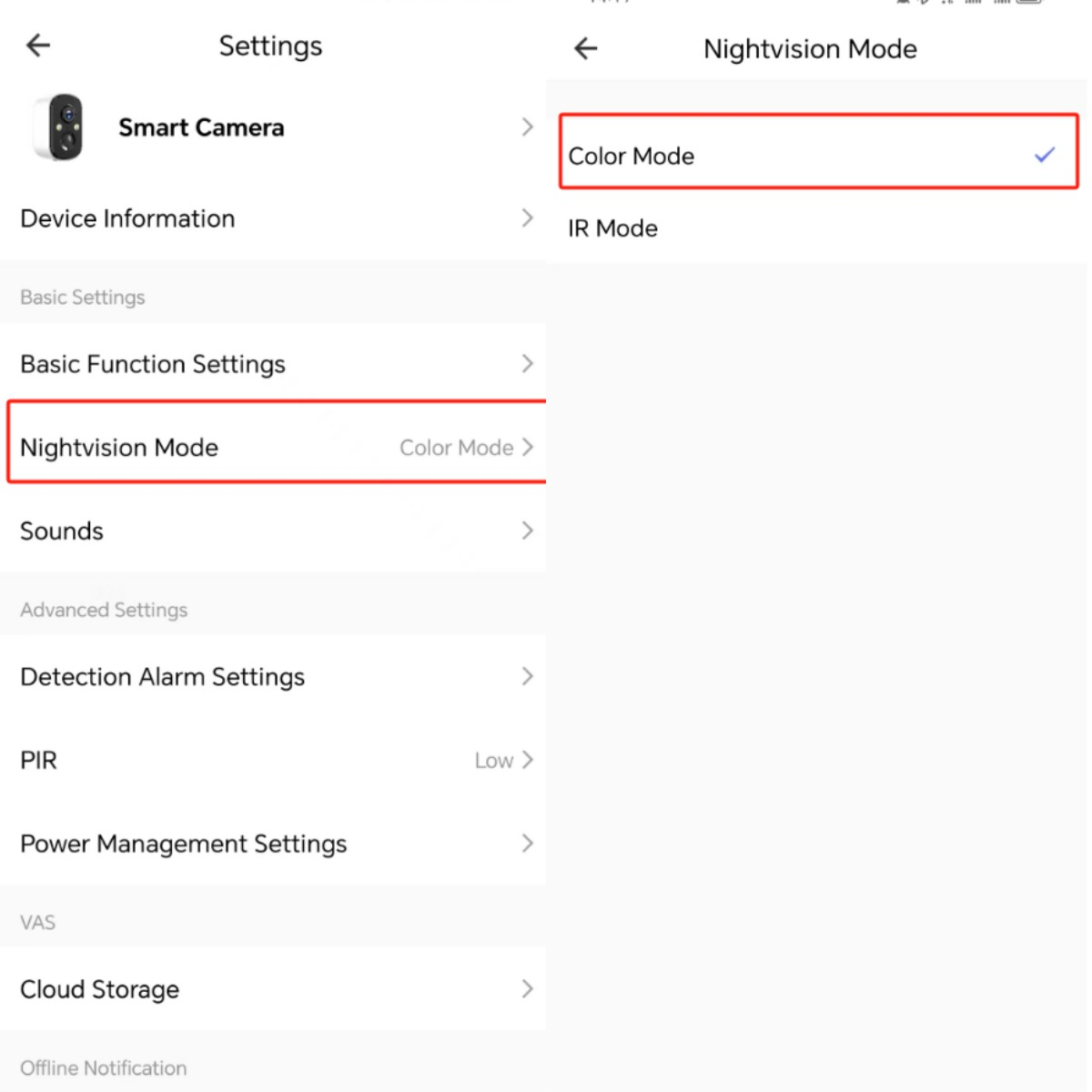
Method 1: Preview page Night Mode shortcut
Method 2: Full screen Features tab Light icon
Method3: Settings > Nightvision Mode > Color Mode permanent switch
Q: How to upgrade device firmware?
A: Pre-upgrade requirements & steps:
1. Camera battery level ≥30%
2. Place camera close to router for stable WiFi signal
3. Upgrade process lasts ~4 minutes
4. Version upgrade rule: V3.2.2→V3.2.4; V3.2.3→V3.2.5
5. If upgrade fails: Turn off PIR & Human Body Filtering before retrying
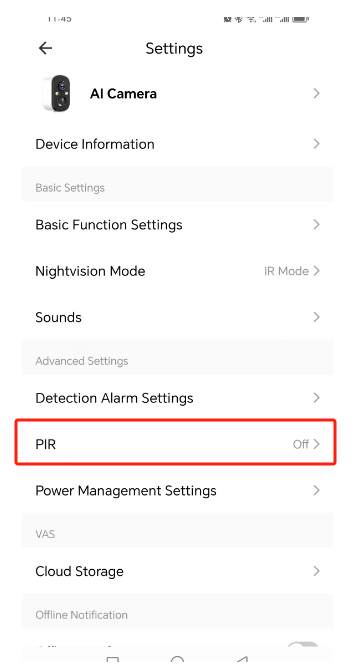
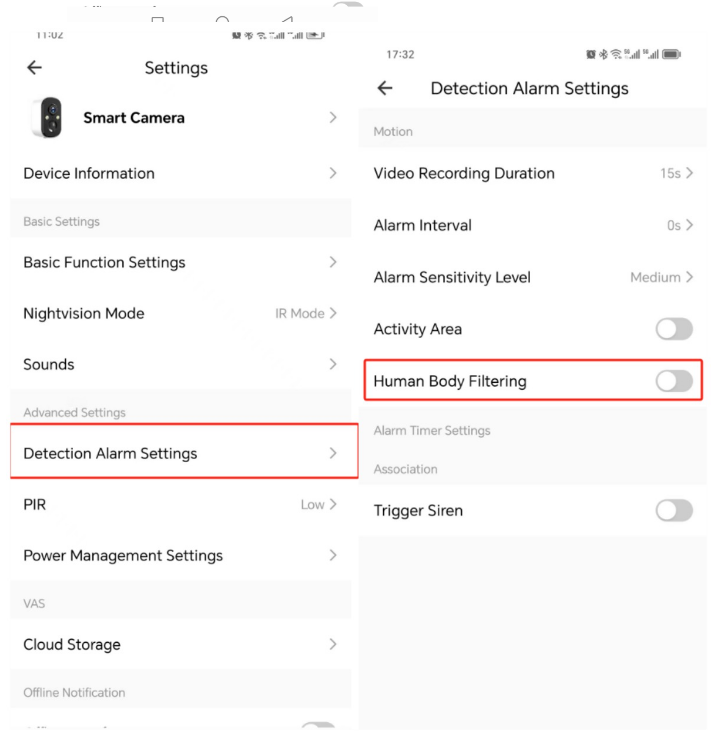
Tutorial video: https://www.youtube.com/watch?v=xYxDaJyToYk
1. Camera battery level ≥30%
2. Place camera close to router for stable WiFi signal
3. Upgrade process lasts ~4 minutes
4. Version upgrade rule: V3.2.2→V3.2.4; V3.2.3→V3.2.5
5. If upgrade fails: Turn off PIR & Human Body Filtering before retrying
Tutorial video: https://www.youtube.com/watch?v=xYxDaJyToYk
Q: How to use cloud redemption codes?
A: Operation flow: Open App -- Me -- Cloud Storage -- Select device -- Subscribe -- More -- Redemption Code -- Input code -- View -- Redeem Now -- Bind target device -- Save
Tutorial link: https://youtu.be/3qOxEDJI1jI
Tutorial link: https://youtu.be/3qOxEDJI1jI
Q: Precautions for outdoor installation - K04 Camera
A: Outdoor wiring waterproof rule for K04 plug camera:
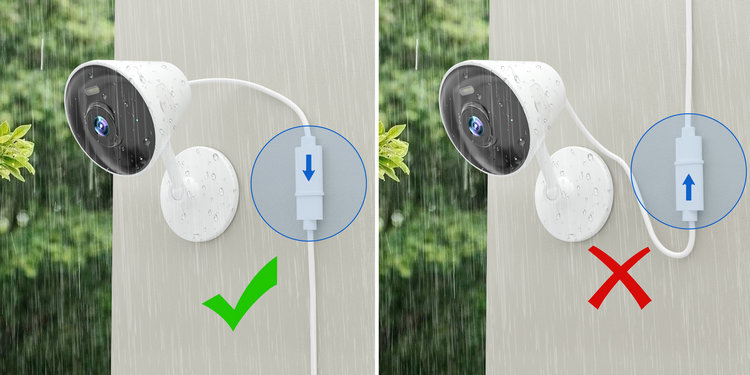
The power silicone interface must face downward to avoid rainwater infiltration and hardware damage; upward cable direction will cause water leakage failure.
The power silicone interface must face downward to avoid rainwater infiltration and hardware damage; upward cable direction will cause water leakage failure.
Q: The camera reports a Wi-Fi SSID not found error
A: Troubleshooting checklist:
1. All camera models only support 2.4GHz Wi-Fi, 5GHz cannot be detected
2. Confirm Wi-Fi network works normally via your mobile phone
3. Move camera closer to router to strengthen signal
4. Simplify SSID name: remove special symbols & shorten long network names
1. All camera models only support 2.4GHz Wi-Fi, 5GHz cannot be detected
2. Confirm Wi-Fi network works normally via your mobile phone
3. Move camera closer to router to strengthen signal
4. Simplify SSID name: remove special symbols & shorten long network names
Q: What is the maximum capacity supported by TF cards?
A: Maximum supported TF card: 128GB, format required: FAT32
Q: What to do when camera is offline?
A: Step-by-step offline troubleshooting:
1. Check camera power supply / battery power
2. Verify WiFi signal strength when online
3. Confirm router WiFi name & password unchanged
4. Test router internet connection with other devices
5. Restart camera to auto-reconnect network
6. Check if firmware needs updating
7. Reset camera and re-add to APP
Support email: Support@Tinosec.com if issue persists after all checks.
1. Check camera power supply / battery power
2. Verify WiFi signal strength when online
3. Confirm router WiFi name & password unchanged
4. Test router internet connection with other devices
5. Restart camera to auto-reconnect network
6. Check if firmware needs updating
7. Reset camera and re-add to APP
Support email: Support@Tinosec.com if issue persists after all checks.
Q: Where to find your Device ID?
A: Steps to locate Device ID for technical support:
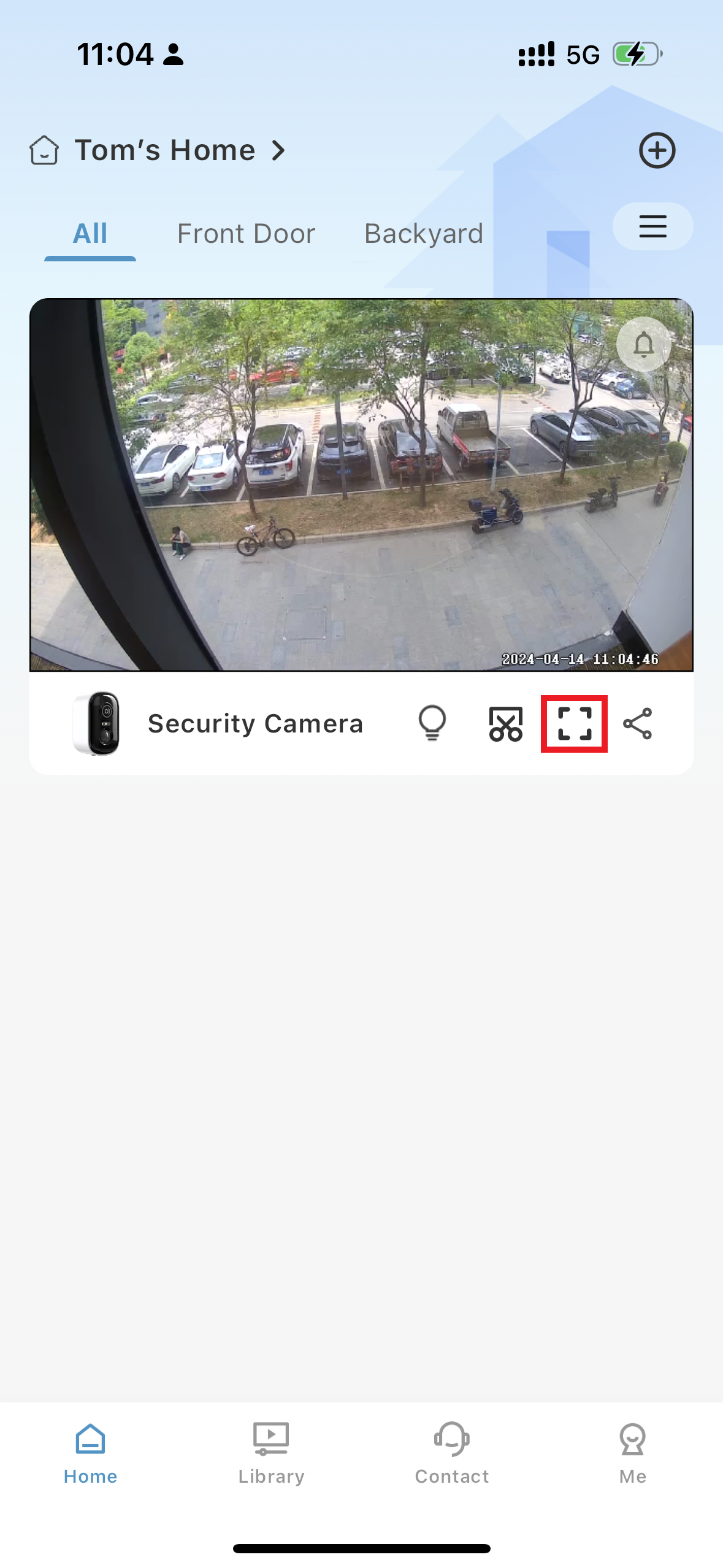
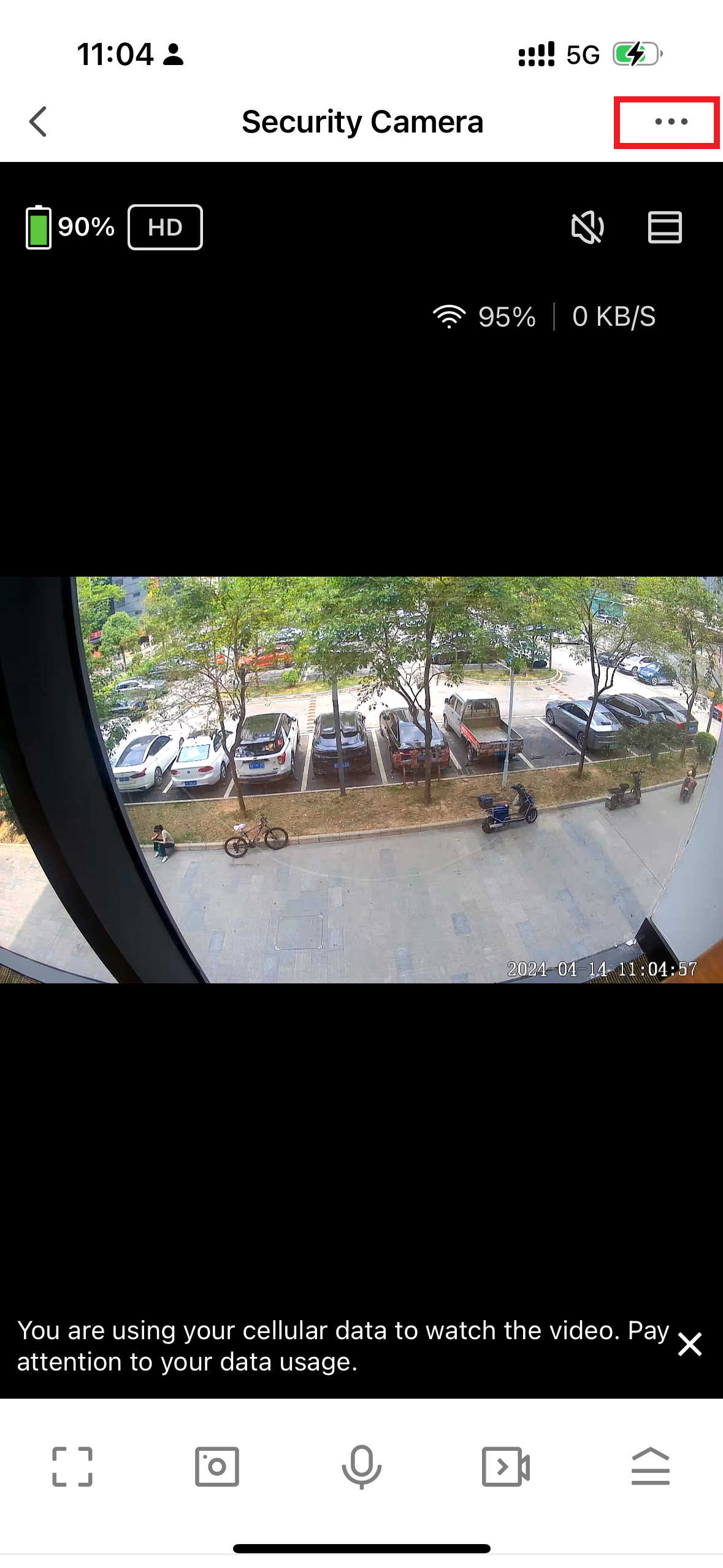
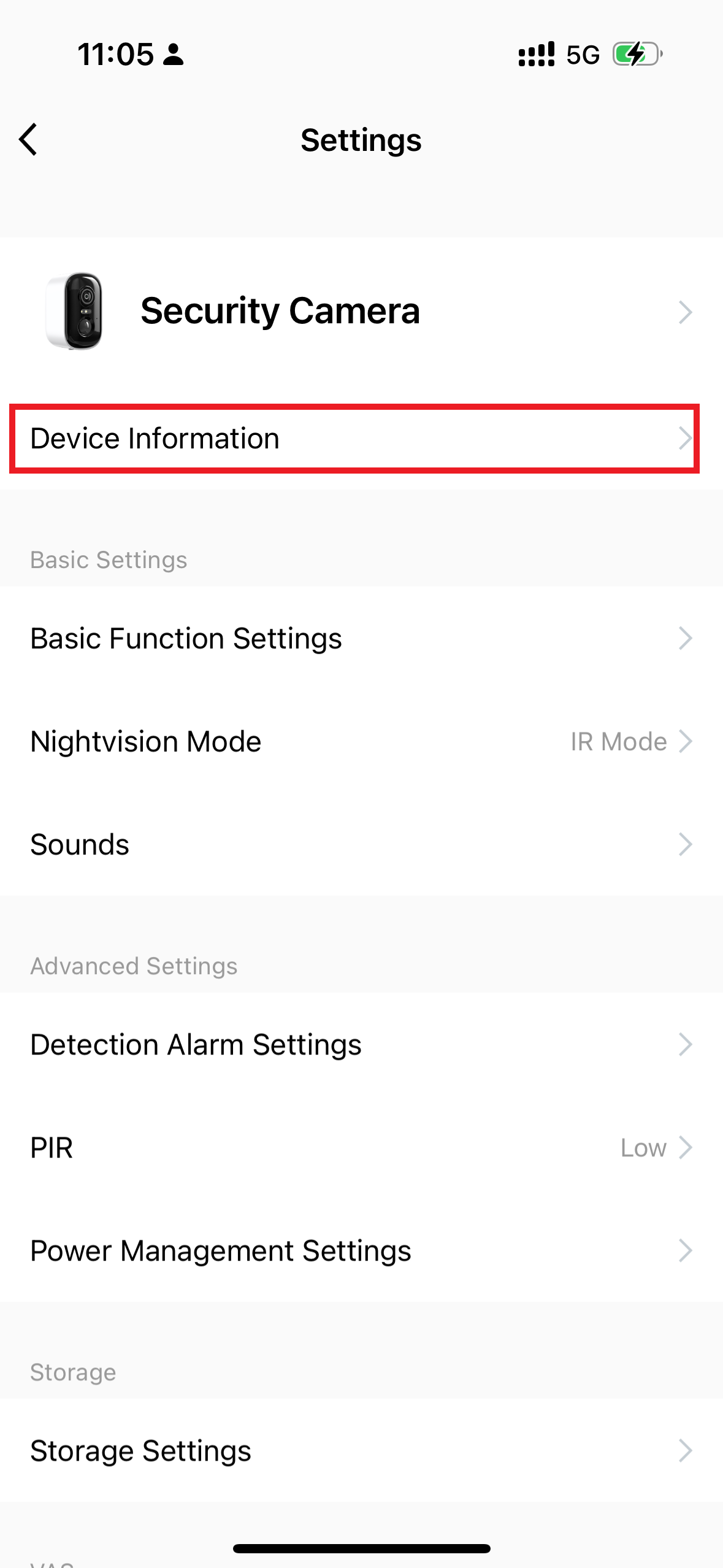
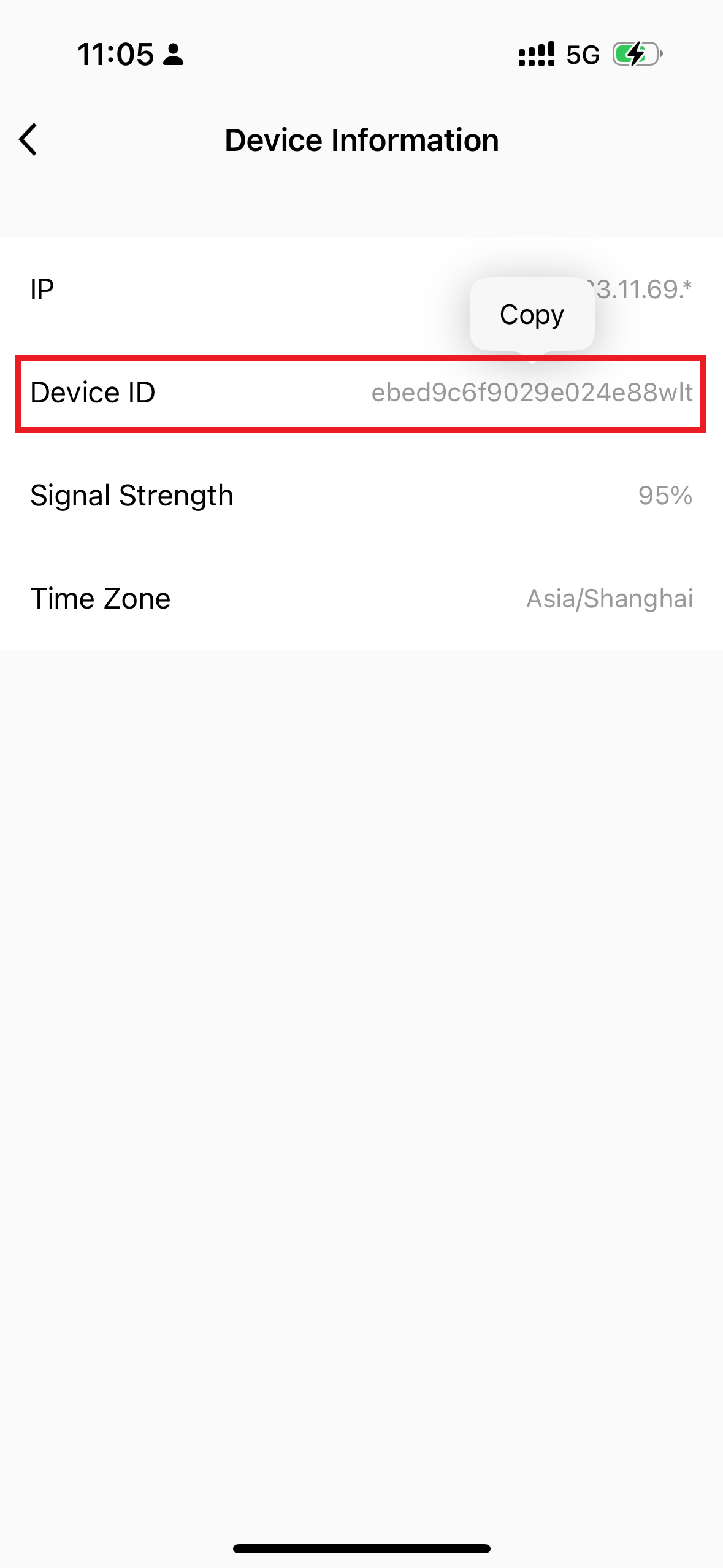
Support team needs Device ID to locate your device model & solve technical faults quickly.
Support team needs Device ID to locate your device model & solve technical faults quickly.
Q: Why can't I access the live stream?
A: Split failure causes & solutions:
1. Camera side issues: WiFi disconnect/unstable / power off / weak signal; restart router or move camera closer
2. Router side: No internet access, fix network first
3. Mobile phone side: Poor cellular/WiFi signal, APP network permission disabled; refresh device list or switch network
4. Advanced fix: Reboot camera, delete & re-add device
Submit feedback inside APP if live view still cannot load.
1. Camera side issues: WiFi disconnect/unstable / power off / weak signal; restart router or move camera closer
2. Router side: No internet access, fix network first
3. Mobile phone side: Poor cellular/WiFi signal, APP network permission disabled; refresh device list or switch network
4. Advanced fix: Reboot camera, delete & re-add device
Submit feedback inside APP if live view still cannot load.
Q: Why can't my camera capture clear night images (window reflection problem)?
A: Reflection interference cause & fix:
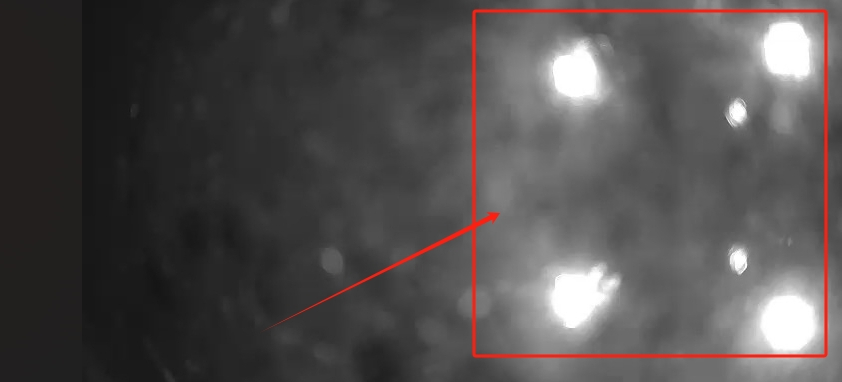
Do not mount camera facing glass windows or smooth white walls; reflective surfaces create overexposed bright spots at night. Adjust installation angle to avoid reflective obstacles.
Do not mount camera facing glass windows or smooth white walls; reflective surfaces create overexposed bright spots at night. Adjust installation angle to avoid reflective obstacles.
Q: Why can't my iPhone receive alarm message notifications?
A: 3-step notification troubleshooting for iOS:
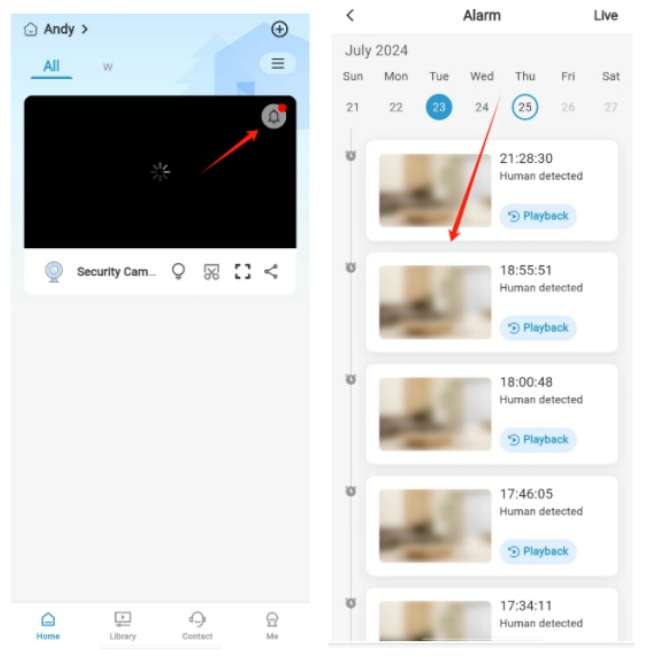
Step1 Confirm alarm records exist in APP message center
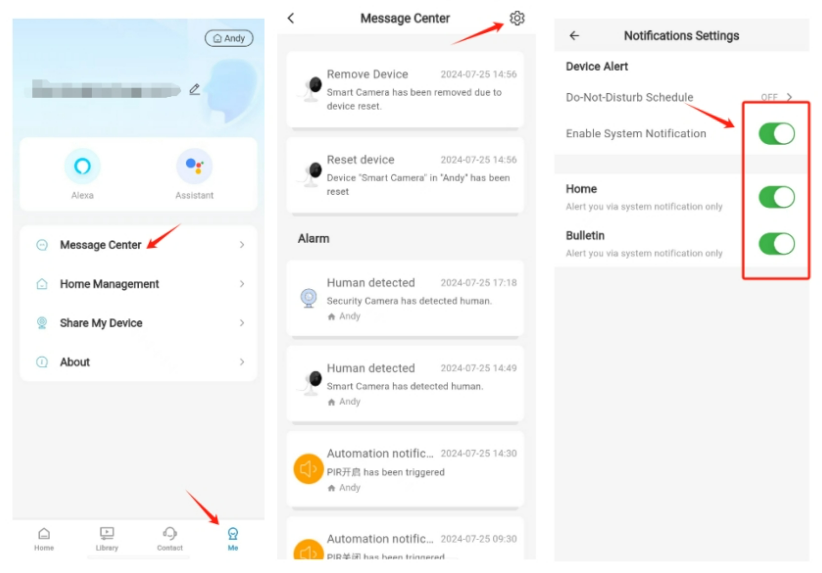
Step2 Enable system notification switch inside TinoSec APP
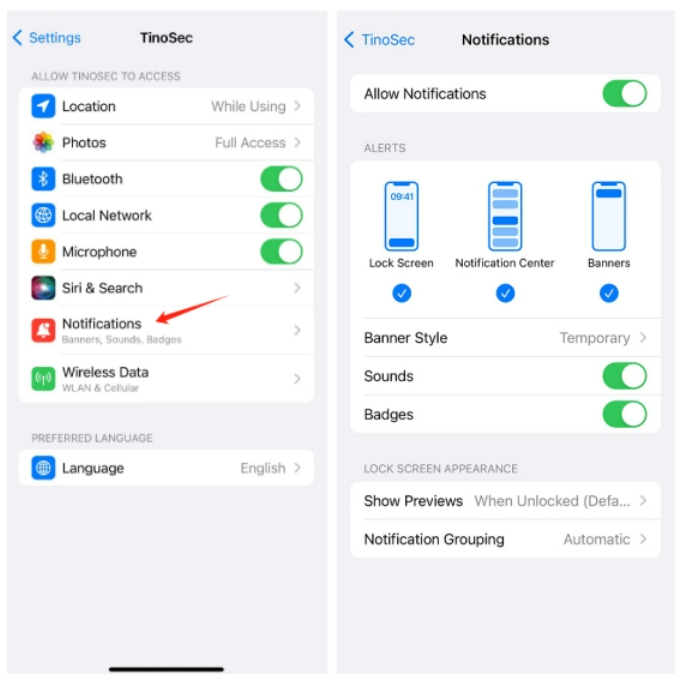
Step3 Turn on TinoSec notification permission in iPhone system Settings
Step1 Confirm alarm records exist in APP message center
Step2 Enable system notification switch inside TinoSec APP
Step3 Turn on TinoSec notification permission in iPhone system Settings
Q: Why I can not use my subscribed cloud service?
A: Cloud subscription requires manual device binding after purchase:
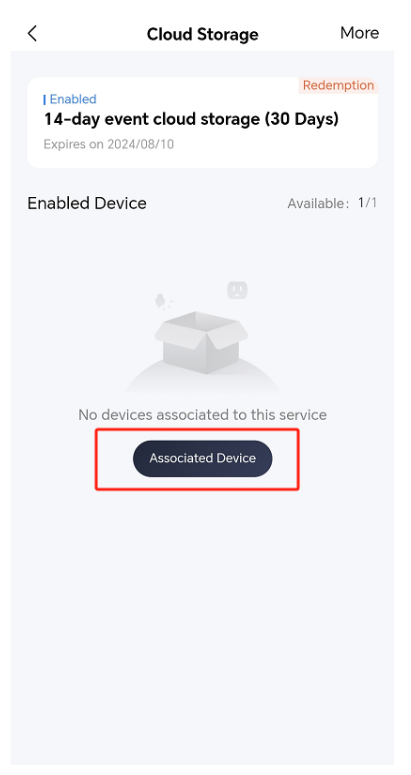
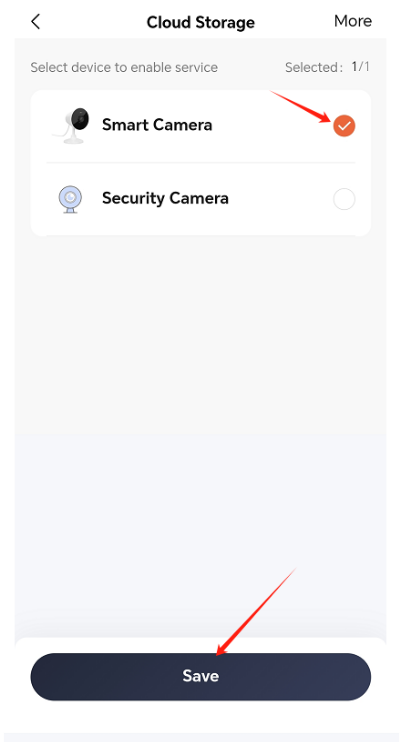
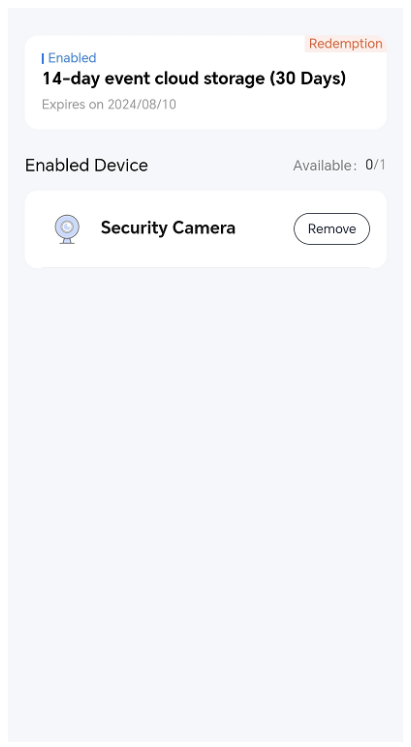
Cloud storage will not record footage until you select and bind your camera to the subscription plan.
Cloud storage will not record footage until you select and bind your camera to the subscription plan.